the orange area around the circle runs out. At the same time, the interval period is
over and the camera will take shots in numbers that you specified beforehand in
the settings of FPS (Frames Per Second). On the bottom right-hand corner, you will
see another shows the number of photos already taken.
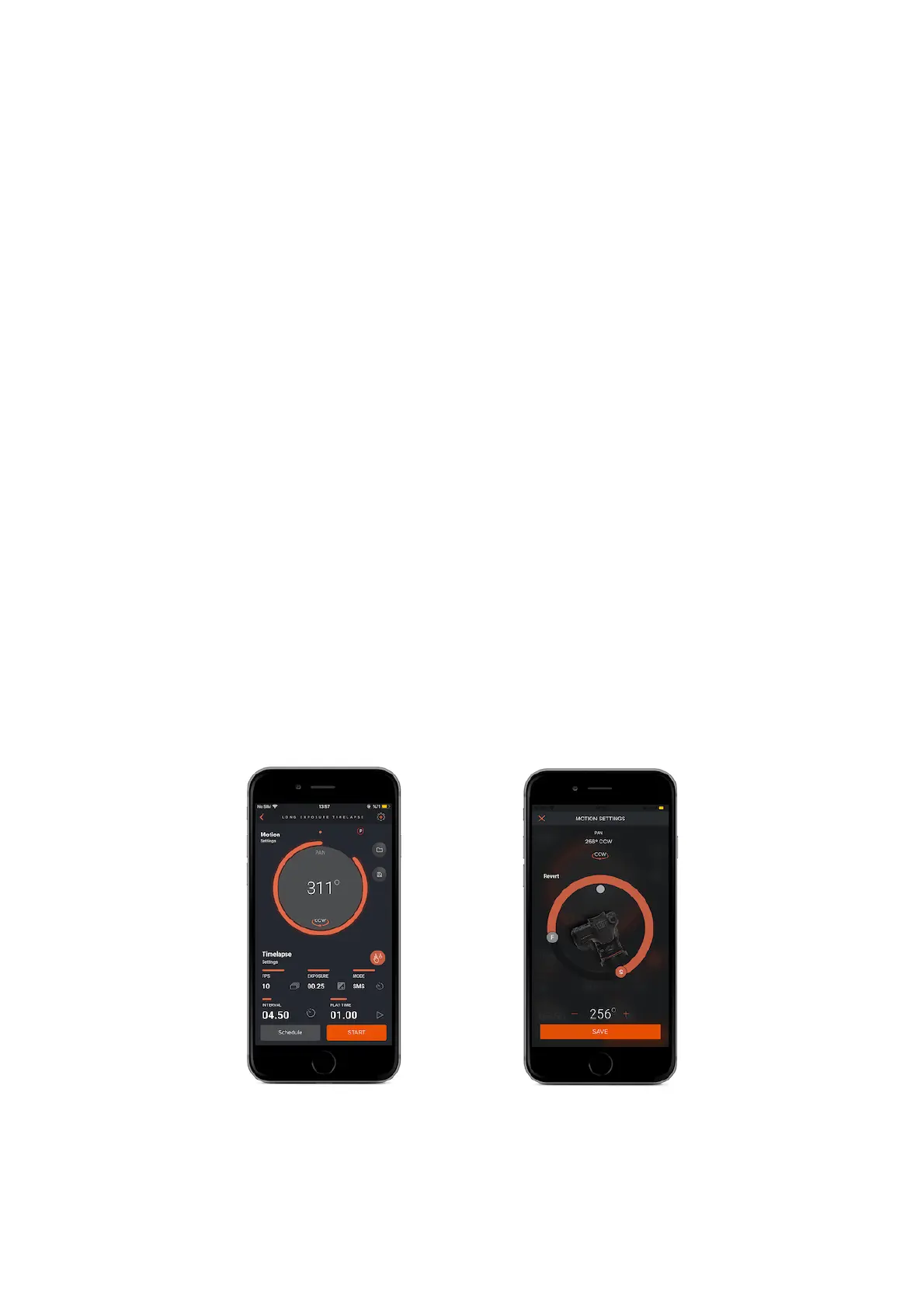
Motion Settings : To turn Capsule360 to its starting point after the programmed
movements are finished, touch the “motion settings” button at the top left-hand
side of the app screen.
Smartphone Button : If you want to use your smartphone`s camera to shooting,
turn on the smartphone setting button by touching the white button which is left-
hand on the screen.
9.2. Long Exposure Timelapse
In this mode, you can define a custom exposure for the timelapse photos. It has
six parameters:
PAN : Set the angle of turning value by swiping your finger under the circle on the
screen. You can choose start ( S ) and finish ( F ) point by using S an F buttons.
Before you start shooting, if you want to control shooting area of your camera, you
can use the grey button inside of the PAN circle.
CCW : Counterclockwise ( Your Capsule360 will turn in counterclockwise direction.
)
CW : Clockwise ( Your Capsule360 will turn in clockwise direction. )
Interval : This parameter defines the duration between each frame. The Interval


 To Next Page