Page 15 of 46
3. In the image gallery view, the user can delete the specific image by pressing
the ‘Delete’ button in the left bottom corner. Once it’s confirmed the image
is permanently deleted from the system.
4. In order to switch between images, the user can either press on the
thumbnails below the large image to jump directly to that particular image
or use the arrows on both sides of the screen to navigate through the images.
5. Download image – the user can download an image by pressing the
‘download’ button.
6. Show/Hide Annotations - By clicking on the annotation button on the top left
of the screen, users can view or hide any annotations that were made on that
particular image.
7. Annotation description/notes are displayed on the right-hand side of the
screen. Locations of annotations are shown on the image.
8. Add annotation – by pressing ‘Add Annotation’, the user can add annotation
to every image in the exam. The following fields need to be filled: annotation
position, biopsy taken, diagnosis and additional notes.
9. Edit/Delete annotation – when the user’s mouse is on a specific annotation,
the delete and edit buttons are displayed. To edit the particular annotation,
the user can press the ‘edit’ button. To delete an annotation, the user can
press the ‘delete’ button.
10. View Green filter - While in large image view, a user can also apply the green
filter to that image. The green filter can be applied or removed by pressing
the green filter button at the top left side of the screen.
11. Whenever it is turned on, it can be found on the capture screen instead of
the green filter button.
12. To close the large size image, the user should press the X button on the top
right corner.
Adding notes
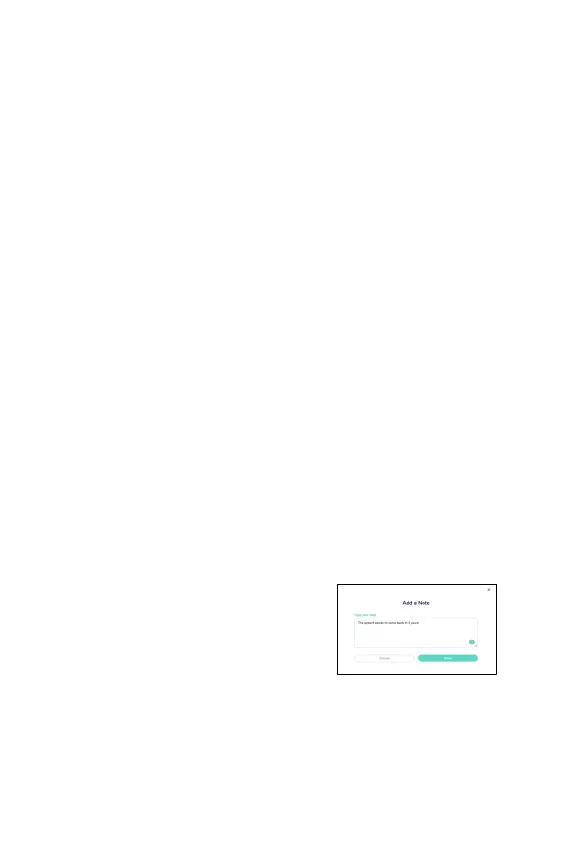
The user can enter free notes and view them
in the examination record.
To enter a new note, the user needs to click on
“Add note” button and a pop up is displayed
where the
user enters free text and press Save.
The new note will appear in the notes section.


 To Next Page