Page 17 of 46
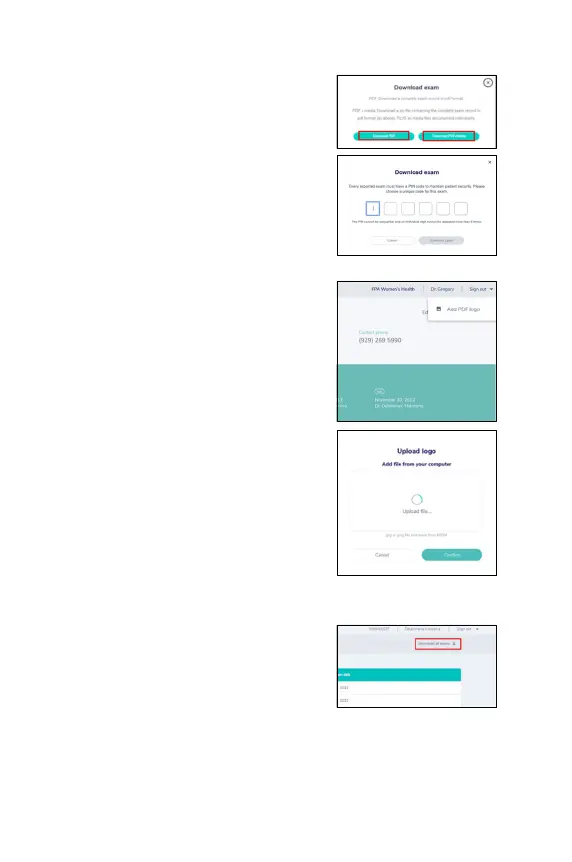
Option 2- Download exam:
Upon choosing this option, the user will be
able to choose to download only the exam’s
report as PDF, or the PDF along with the
exam’s media files.
Add logo to PDF
Clinical admins can add a personalized logo to
exported pdf exam report.
1.
When viewing the patient details, select
‘Add PDF’ from the settings menu.
2.
Then either drag and drop, or browse the
local computer for your selected file and
upload to the EVA Portal. Click ‘add logo’
to attach the selected logo to the PDF
export.
3.
Image files must be no more than 4MB
and in JPG or PNG format.
4.
Click confirm to have this logo
automatically added to any future PDF
reports.
Download all exams (Bulk Download)
1.
At the top right of the patient menu there
is an option to bulk download all exams
created by you. This will enable you to
download all exam
your entire EVA System account.


 To Next Page