Page 21 of 46
3. Having logged out from all active sessions, they can then log back in as
normal.
Reset PIN
If the user that is presented is yours, enter the PIN to access the device. You will
have 5 attempts to enter the PIN correctly. If you do not remember the PIN, tap
on ‘Forgot PIN?’ and it will redirect you to the ‘sign-in ‘screen’. On this screen, you
will be able to log in using your email and password.
Changing the user
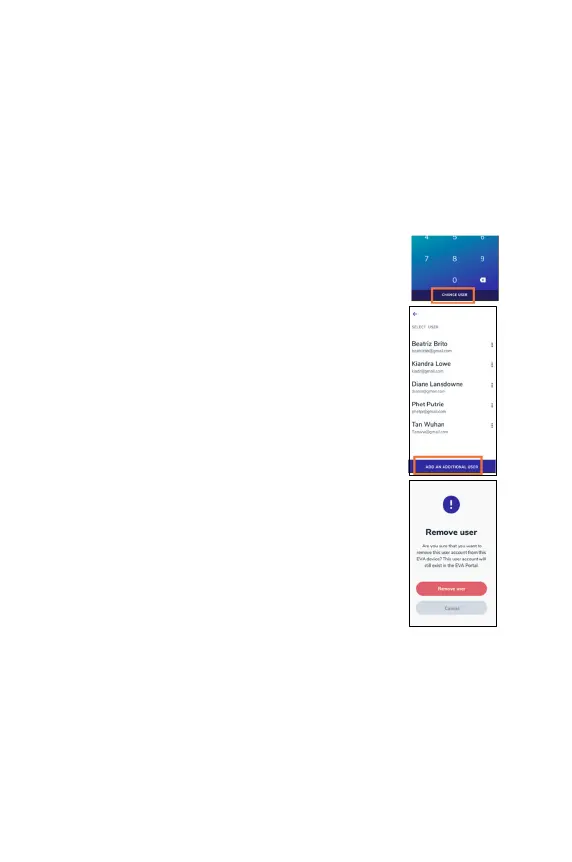
If the user that is presented on the screen is not your user,
tap on ‘CHANGE USER’.
The app shows all the users that were added to that
particular device. If your email is not
AN ADDITIONAL USER', and it will redirect you to the sign-
in/set up screen.
If you wish to remove a user from the device,
press the menu button (three dots) next to the specific
user and then select “Remove user”.
Once it’s pressed a confirmation pop-up is displayed.
Please note: The user in question is only removed from
this particular device. All the data that
created is available through the EVA Portal. The user will
still be present on any other EVA device that they may
have logged into. This user can also add his/her account
to this device again in the future.


 To Next Page