Page 22 of 46
Reset EVA account password
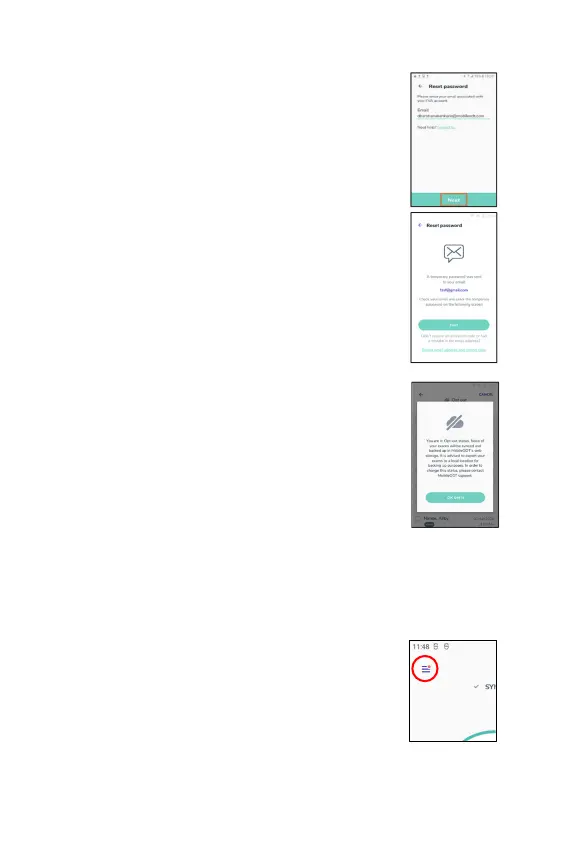
A User’s EVA account password can be reset through
initial log in menu:
• Tap on ‘Log-In’ and then ‘Reset password’.
•
Enter your email address associated with your EVA
account and tap on ‘Next’.
A temporary password will be sent to the email
example, fzsf@gmail.com). Tap on ‘Next’.
•
Enter the temporary password in the dedicated field.
Enter a new password in the dedicated field. The
password requires a minimum of eight characters
including a capital letter, a lowercase letter, and one
number and one special character. Re-
password and tap on ‘Next’.
Opt-out status
A user or organization may choose to operate in ‘Opt-
status, meaning that none of their exam data will be
uploaded or synced to the EVA Portal online storage.
Opt-
out status is managed by MobileODT administration.
Users can request that opt-
removed from their account by contacting
support@mobileodt.com.
While in opt-out mode the app is not synced with the EVA Portal and cannot link
past exams conducted on a patient with the same MRN.
It is advised that exam data be regularly manually exported using USB and backed
up on a local computer (see ‘Exporting the Exam’ section for instructions).
Notification Center
Users will be notified through the notification center of
important information intended to maintain the smooth
running of their EVA System, such as when a software
update is available.


 To Next Page