Page 28 of 46
Summary
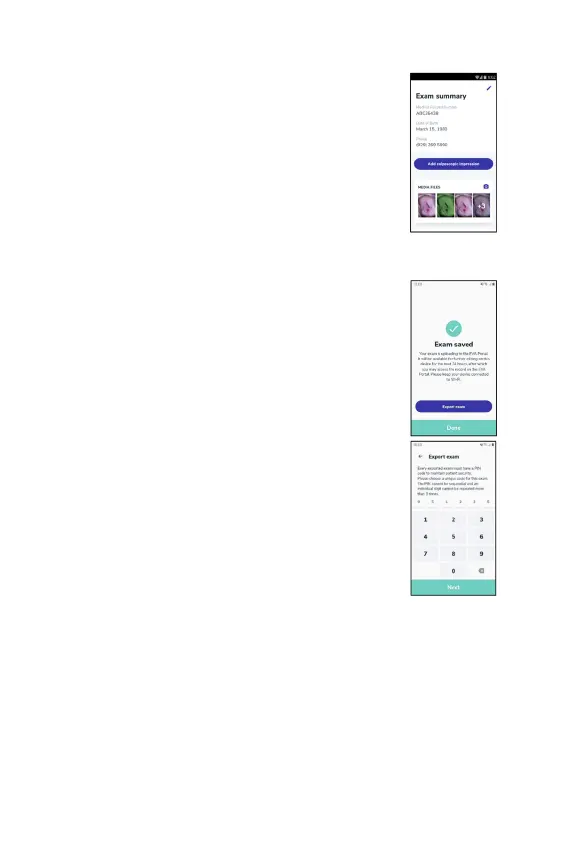
All the
information entered is displayed on the summary
page.
You can edit patient's details by pressing the edit button
at the top of the screen.
To finalize the documentation, tap on 'Finish exam' when
done. The exam will start uploading to the EVA Portal. The
exam will be available for further editing on the device for
the next 24 hours.
Exporting the exam
After tapping on ‘Finish exam’, an option to export the
exam is available. The user can choose between exporting
to an email or to a folder on the
exams can be exported and backed up manually on a local
drive.
Tap on the button 'Export exam'.
A 6-
digit PIN code is requested to ensure the files of the
examination will remain secure. The PIN cannot be
sequential, and an
individual digit cannot be repeated
more than 3 times.


 To Next Page