Page 29 of 46
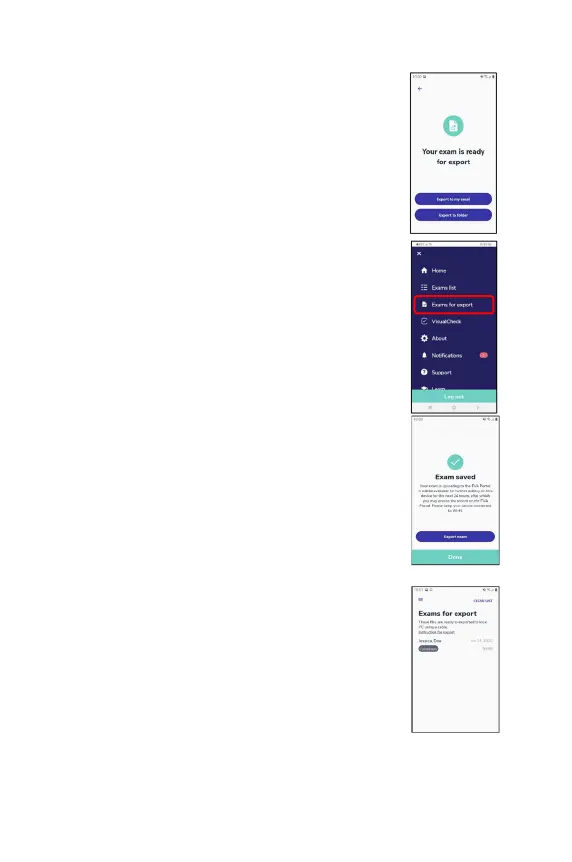
After setting the pin, the user will need to choose whether
to export to the user’s email or to export to a folder.
Upon choosing ‘Export to my email
start exporting the
examination report as a PDF. When
the upload Process to the portal is completed, the
exam will be sent to the user’s email.
• Upon choosing ‘Export to folder
exporting the examination report and media as a ZIP.
When the zip is
created, the exam will appear on the
‘Exams for export’ page.
If you don’t want to export the exam, tap on ‘Done’ and
the home screen will be displayed.
Exams can also be selected for export via the Exam list
screen on the main menu. See next section for
Only exams that have been completed can be exported.
Back up exams on a local drive:
The ‘Exams for export’ page can be reached from the
menu and presents a list of all exams that exist on the
device as ZIP files that are ready to be exported manually
and backed up.


 To Next Page