16
Getting to know your phone
K USB connector
Tochargeyourmobilephone(USBcablenotincluded).
Answering machine key illumination
Answeringmachineon/off-illuminatesatalltimes.
Play-illuminateswhentheansweringmachineison/asheswhenthereare
newmessages.
Otheransweringmachinekeys-illuminateswhentheansweringmachineis
beingaccessed.
BluetoothLED-illuminateswhenthecorrespondingmobileisconnected.
Navigating the menu
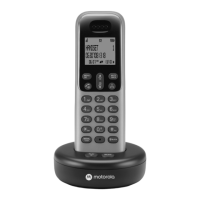
YourIT.6Thasaneasytousemenusystemonthehandset.
Eachmenuhasalistofoptions,whichyoucanseeonthemenumaponthe
followingpage.
Whenthehandsetisswitchedonandinstandby:
1. Presstheleftsoftkey
Menu
.Themainmenuisopened.
2. Thenuse
buttontoscrollup/down/left/rightthroughthemenu.
3. Softkeyoptions
OK
and
Back
aredisplayed.
Presstheleftsoftkey
OK
toopenasub-menuorvalidateanoption.
Presstherightsoftkeyoption
Back
togobacktothepreviousmenulevel,
correctacharacterorcancelanaction.
Moving through the menu
Throughoutthisguidethewords'scrollto'willbeusedwheneveryouneed
toscrollup/down/left/rightintheproductmenu.
Ifyouneedtopresstheup/down/left/rightoptionsdirectlythenthewords
UP/DOWN/LEFTorRIGHTwillbeused.Seebelow.
NOTE
If no buttons are pressed for 30 seconds or the handset is placed on the base
/ charger, the handset returns to standby.
Presstoscrollup
Presstoscrolldown
Presstoscrollright
Presstoscrollleft

 To Next Page
 Loading...