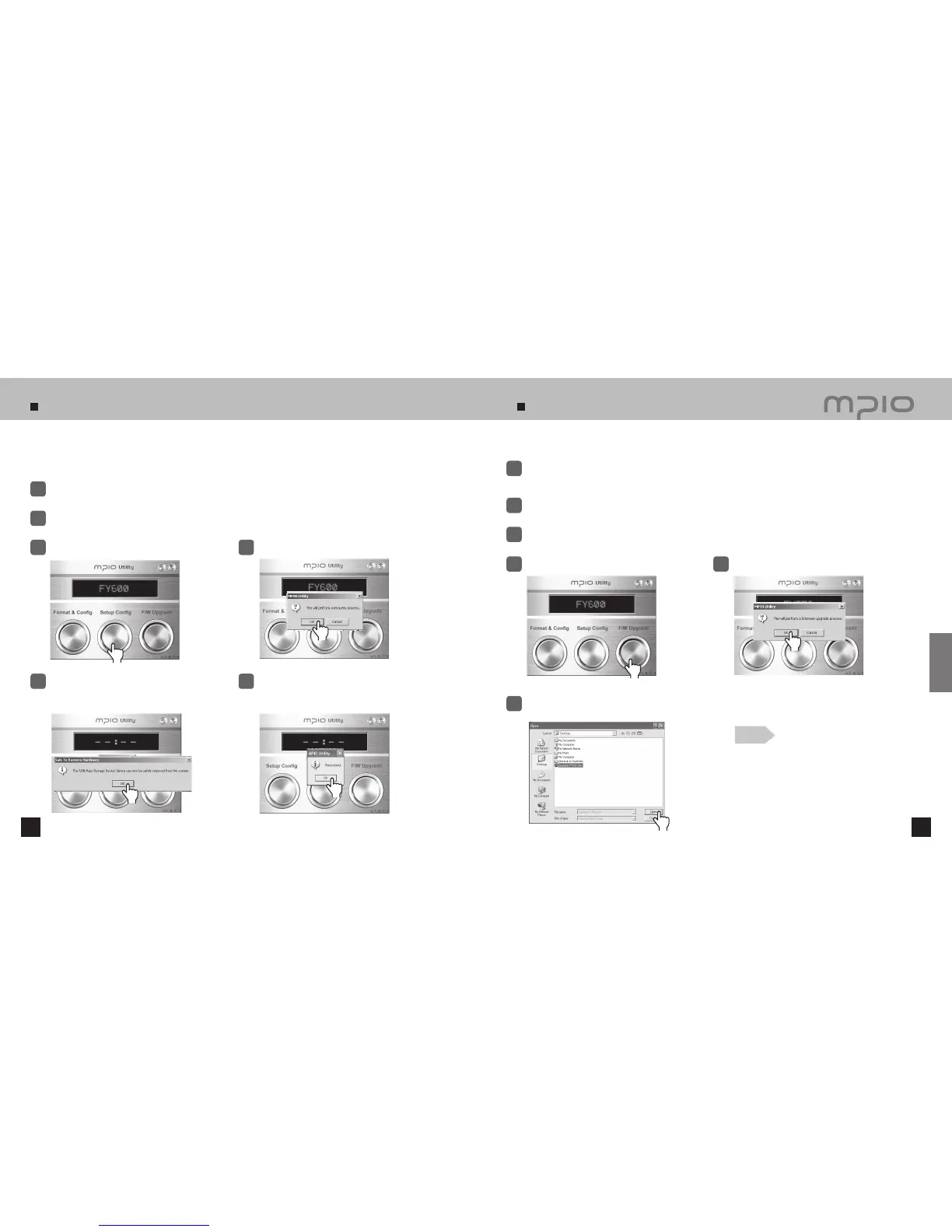
Storing Default Settings
66 67
Upgrading Firmware
When FY600 has been formatted using the Windows FORMAT Command (FAT or FAT16), the
default settings must be restored using MPIO Utility’s Setup Config function. Refer to page 13
[Installing the software] for more information about installing MPIO Utility.
The files in FY600 will be lost after upgrading firmware.
Refer to page 13 [Installing the software] for information on how to install MPIO Utility.
Click
Turn the power of FY600 ON and connect it to a computer using a USB cable.
1
Double-click MPIO Utility icon in your desktop.
2
Click the [Setup Config] button.
3
Click the [ OK ] button
4
Click the [ OK ] button after the Safely
Remove Hardware message appears as
shown.
5
After clicking the [OK] button, Setup Config
(Default Setting Restoration) is complete.
You can unplug the device from the PC.
6
Download the firmware from the MPIO web site, and uncompress and save it in the PC.
(www.mpio.com)
1
Turn the power of FY600 ON and connect it to a computer using a USB
cable.
2
Double-click MPIO Utility icon in your desktop.
3
Click the [F/W Upgrade] button.
4
Click the [ OK ] button.
5
Select the downloaded Upgrade.FY600.dwu file in the [ Browse ] window and then,
click the [ Open ] button.
6
Note
●
The firmware upgrade files provided at MPIO web
site are compressed as ZIP files. When you unzip
the file, a TXT file with information about the
changes and an Upgrade_FY600.ROM file will be
created.
Click
Click
Click
Click
Customer Support
Click
Click



 To Next Page