Upgrading Firmware
68 69
Firmware is automatically upgraded when the device is unplugged from your PC.
When the firmware upgrade is complete, FY600 will be turned OFF automatically.
9
●
Please be aware if you apply external shock or the battery is low while the player is upgrading the firmware,
it can cause product breakdown or malfunction.
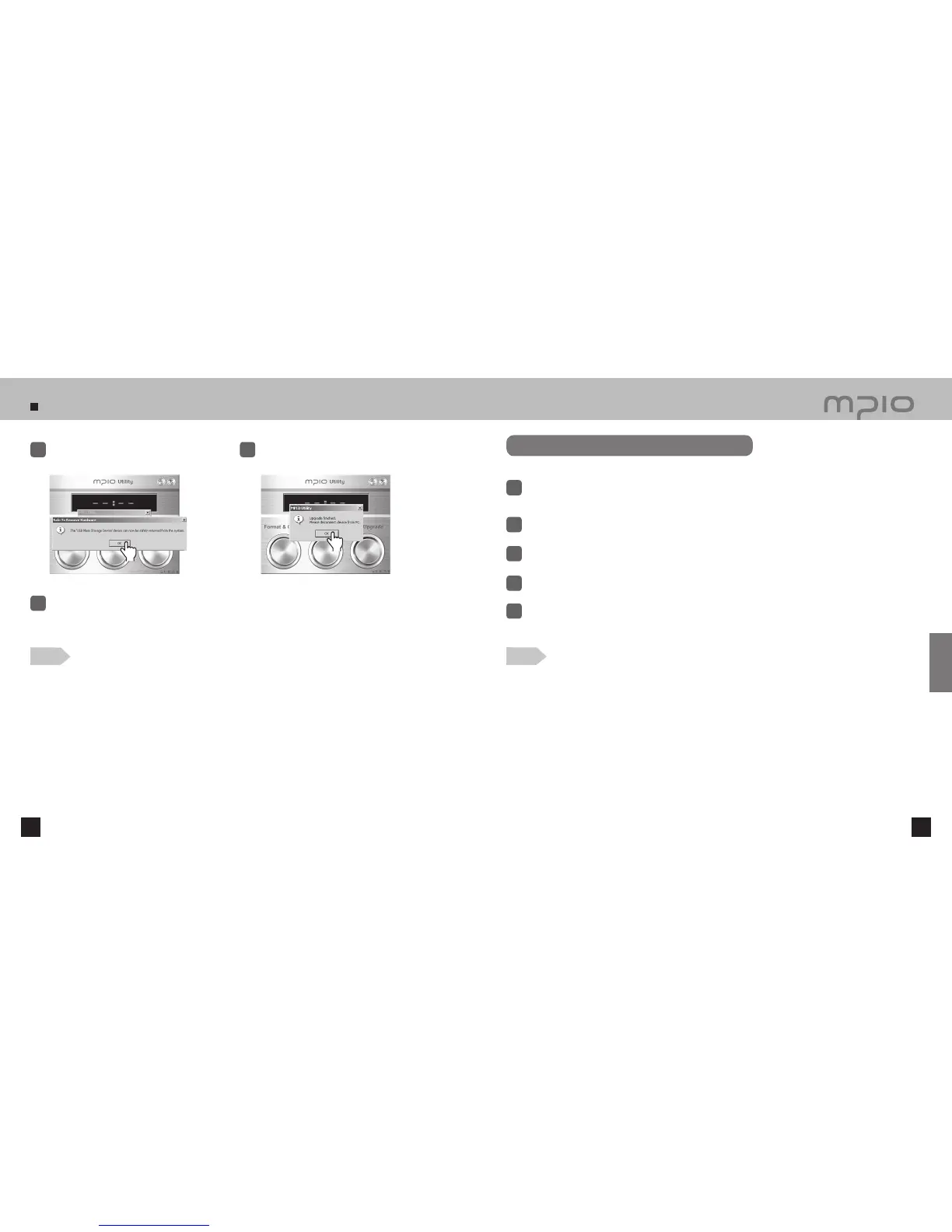
Click the [ OK ] button after the Hardware Safely
Removed message appears as shown.
7
After clicking the [ OK ] button, the first part of
firmware upgrade
is complete.
8
Caution
Download the firmware for Macintosh from the MPIO web site, and uncompress and save it in the PC.
(www.mpio.com)
1
Turn the power of FY600 ON and connect it to a computer using a USB cable.
2
Save the firmware upgrade file (Image.dat, Player.rom, and Upgrade.axf) in FY600.
3
Separate FY600 from the computer.
4
Upgrading Firmware in Macintosh
Firmware is automatically upgraded when the device is unplugged from your PC.
When the firmware upgrade is complete, FY600 will be turned OFF automatically.
5
Note
●
To upgrade the firmware, there must be 10MB of free memory space in FY600’s memory.
●
Formatting FY600’s memory using Macintosh PC is not recommended. To format FY600, please contact the
customer support center.
●
The firmware upgrade files for Macintosh are compressed as Stuffit files. When you unzip the file, a TXT file with
information about the changes and an (Image.dat, Player.rom, and Upgrade.axf) file will be created.
●
Causing outer impact on FY600 or lack of battery during firmware upgrade may cause a malfunction.
Click
Click
Customer Support
The files in FY600 will be lost after upgrading firmware.


 To Next Page