myPOS Smart Technical Specicaon & Warranty (Updated March 2018) | page 9
myPOS Mini - User Manual | page 9
IMPORTANT: Always enter the phone number with the country code.
If the customer wants to receive an e-receipt from myPOS in his or her e-mail box,
press (2) and enter the e-mail address of the customer.
If the customer does not want to receive any receipt for this transacon, press (3 -
No Receipt).
IMPORTANT: It is always a good pracce to send an SMS e-receipt in order to resolve
any possible issues with the customer.
Processing magnetic stripe cards
If your customer’s card has only a mag stripe on it, please follow the procedure
below aer you enter and conrm the amount of the transacon. Magnec stripe
cards are swiped with the magnec stripe side facing up using the reader located at
the top-behind side of the myPOS Mini. Make sure the card is inserted properly and
the boom of the card runs rmly along the boom of the card swipe and that the
card is swiped at an even speed. The speed of swiping the card must not be too slow,
as this can somemes cause problems when the terminal is reading cards.
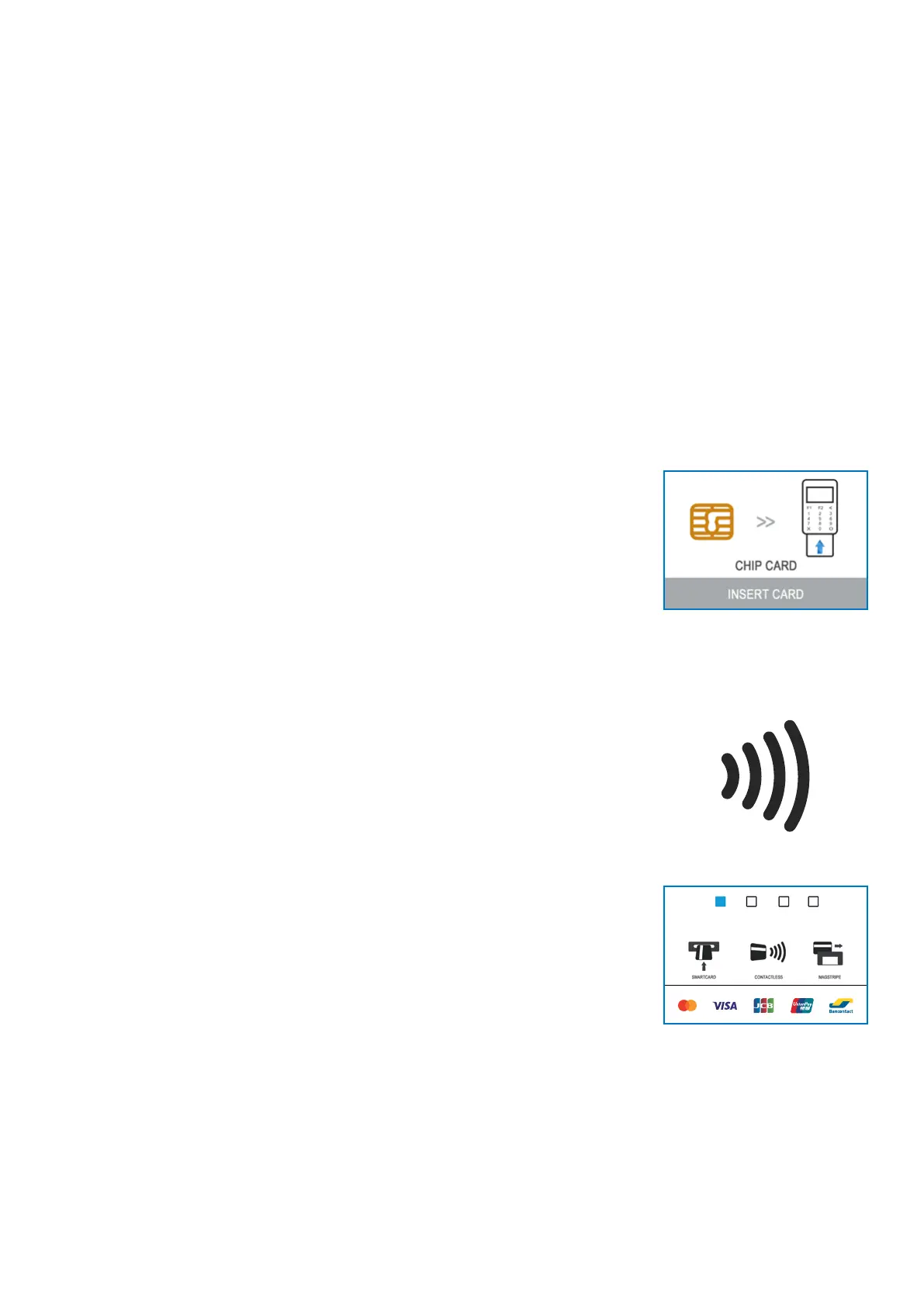
If a CHIP card is swiped as a magnec one, the terminal will display the following
screen.
Please, insert the card with the CHIP facing up into the reader located at the boom
of the myPOS Mini and follow the steps for accepng CHIP cards laid out in the
previous secon. Complete the transacon as described in Step 3 of the previous
secon.
Processing contactless cards
(PayPass or payWave)
The contactless (NFC) technology is gaining popularity and it is very likely that many
of your customers will hand you such cards. Your myPOS Mini device can accept two
types of contactless cards - PayPass and payWave, issued by Mastercard and VISA
respecvely.
Contactless cards always need to have one of the following logos printed on it.
If your customer has a PayPass or payWave logo on it, please follow the procedure
below aer you enter and conrm the amount of the transacon.
Hold the card (or smartphone) approx. 3cm above the display of your myPOS Mini.
When the secure contactless reader recognizes the card, the four-color indicators
will ash indicang that the card is being processed. If the card is successfully read,
all four indicators will be on. The process takes one second and aer you hear a
beep, you can remove the card.
If the card requires a PIN code to be entered, please hand the terminal to the
customer and ask him or her to enter his or her PIN code.
Complete the transacon as described in Step 3 of the previous secon.
PAYMENT
AMOUNT: 19.99 EUR



 To Next Page