myPOS Smart Technical Specicaon & Warranty (Updated March 2018) | page 12
myPOS Mini - User Manual | page 12
Refund transactions
A refund transacon is used in order to issue a refund (credit) to the customer.
When you refund a card transacon, the amount of the refund is returned to the
customer’s card account and your myPOS account is debited with the corresponding
amount. You must always make a refund to the card used for the original purchase.
Before making a refund
• Never make a refund unless there has been an original purchase with the card.
If you do, service provider may block your myPOS Mini terminal and withdraw
your card processing facility.
• Check that your customer has handed you the card used for the original
transacon – the last four digits have to match those on the e-receipt. If they
do not, ask for the original card.
• Never give a cash or cheque refund for a card transacon – fraudsters oen try
to obtain cash this way.
• Never refund more than the original transacon amount.
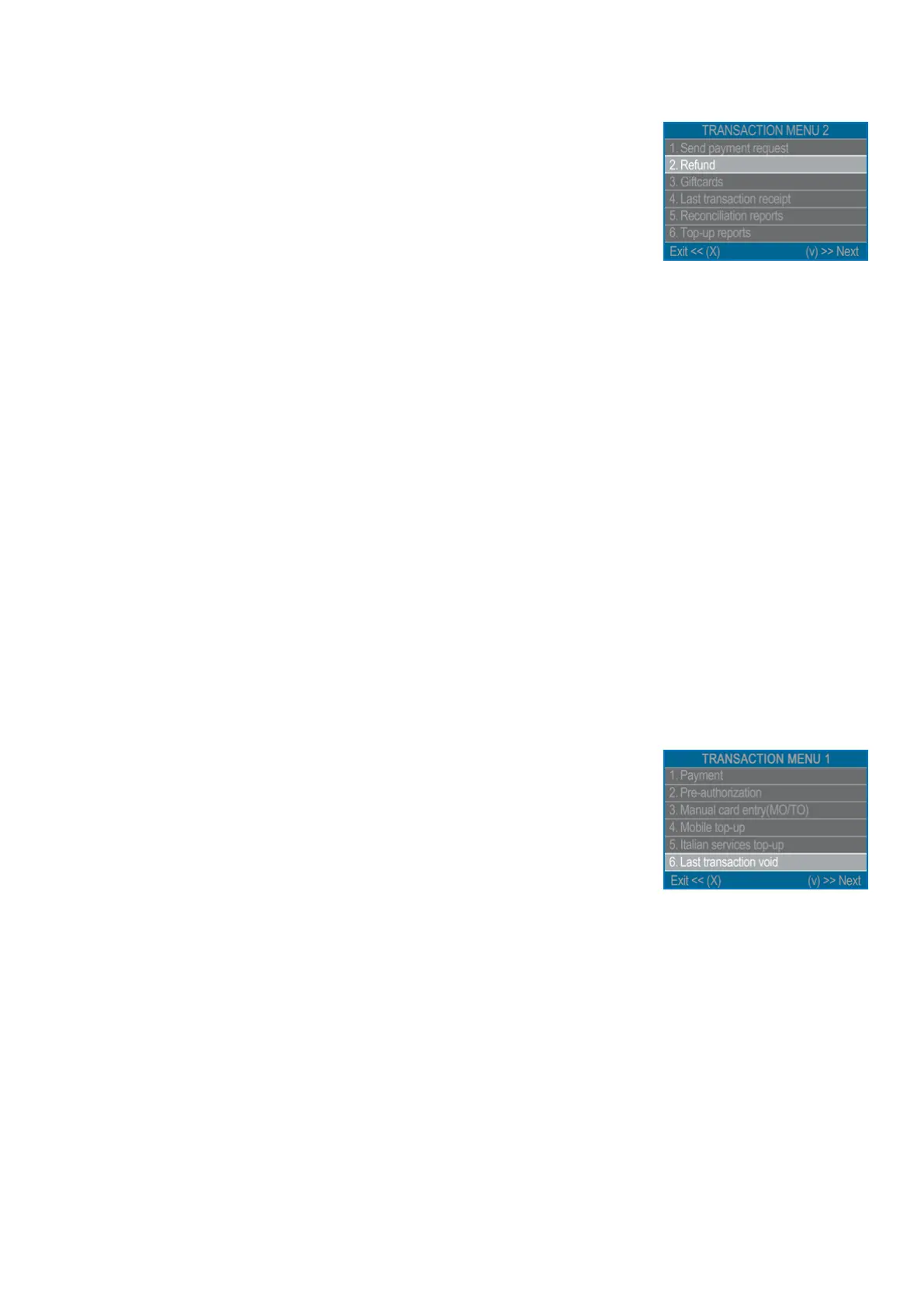
Step 1: From the home screen, press (F1) from the keyboard in order to enter the
Transacon type menu. Go to Transacon menu 2 and select REFUND by pressing
key (2). The myPOS Mini terminal will display the REFUND screen.
Step 2: Type in the amount of the refund transacon and press the green key (O) to
conrm. Present the customer card to the terminal either via the Magnec Stripe,
Chip or contactless reader.
Step 3: Ask your customer to Enter PIN code where required.
Last transaction void
Step 1: From the home screen, press the green key (O) and then press (F1) in order
to enter the Transacon type menu. Select Last Transacon Void by pressing key (6)
and conrm with the green key (O). The myPOS Mini terminal will display the Last
Transacon void screen showing the amount of your last transacon.
Step 2: Conrm by pressing the green key (O) if you want to proceed.
Step 3: Ask your customer to Enter PIN code where required.
If there is no previous successfully processed transacon or it has been voided, the
myPOS Mini terminal will display an error message “No transacon found”.
If the transacon is declined with a “Transacon is not permied” message, then
take into account that this type of transacon is forbidden for the parcular myPOS
Mini device.



 To Next Page