myPOS Smart Technical Specicaon & Warranty (Updated March 2018) | page 8
myPOS Mini - User Manual | page 8
Accepting payments
Once your new myPOS Mini device is connected to the Internet and acvated, it is
ready to accept payments with credit and debit cards.
Your myPOS Mini supports three dierent methods for accepng payments with
credit and debit cards - Magnec Stripe (in the back side of the device, on the top),
CHIP & PIN (on the boom part of the device) and Contactless (NFC, build-in antenna
under the display).
Payment transactions
Every me you switch on your myPOS Mini terminal, it will automacally connect to
the Internet and will display the home screen.
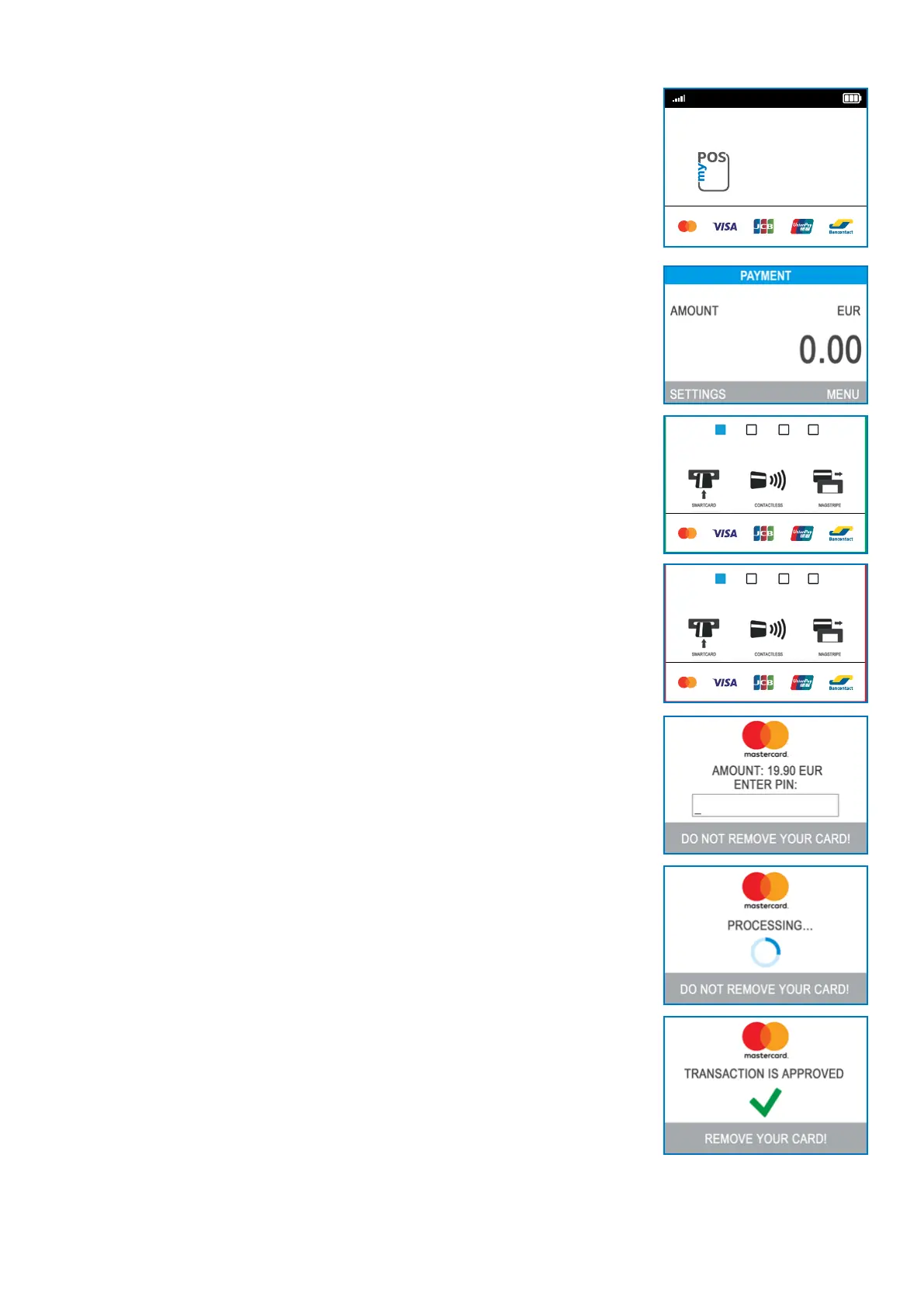
When you press the green key (O), the terminal will go directly to the PAYMENT
screen ready for performing a Payments transacon. Making a PAYMENT transacon
with your myPOS Mini is easy and convenient. Please follow the 3 basic steps wrien
below
Step 1: Enter the amount of the transacon in the PAYMENT Screen. The amount
must be entered without the decimal point. For example: for an amount of 5.00,
enter 500 on the keyboard. When the PAYMENT screen display the correct amount,
conrm by pressing the green key (O). If you need to correct the amount, please use
the yellow key (<) to delete the last entry or the red key (X) to start the process from
the beginning.
Step 2: Ask your customer for his or her credit or debit card. If the card has a CHIP,
insert the card in the boom reader with the CHIP facing towards the keyboard.
When myPOS Mini is reading the card, the screen will ash Green. If the card is not
recognized, the screen will ash Red.
Please check if the card is inserted properly in the reader, remove it and try again. If
the problem persists, please ask your customer for another card.
CHIP cards usually require a PIN code in order to conrm a transacon. If a PIN code
is required for a card, your myPOS Mini terminal will display the ENTER PIN screen.
Please, hand the terminal to the customer and ask him or her to enter his or her PIN
code securely and to press the green key (O) when ready.
If the card supports PIN (personal idencaon number) check, the terminal will
process the PIN code and will display PIN OK if the correct PIN code has been
entered by your customer.
The myPOS Mini will iniate the transacon authorizaon process by communicang
with myPOS. The PROCESSING screen will indicate that the procedure is not
completed.
If the transacon request with a card has been approved by the issuer, the myPOS
Mini terminal will display a conrmaon message: “TRANSACTION IS APPROVED”. At
this point, you can remove the card from the reader and return it to the customer.
Step 3: Send an e-receipt to the customer for the approved PAYMENT transacon via
SMS or e-mail by choosing the preferred opon from the Receipt menu.
If the customer wants to receive an e-receipt from myPOS via SMS, press (1) and
enter the mobile phone number of the customer in the screen.
12:30
HELPS MY
BUSINESS GROW
PAYMENT
AMOUNT: 19.99 EUR
PAYMENT
AMOUNT: 19.99 EUR



 To Next Page