myPOS Smart Technical Specicaon & Warranty (Updated March 2018) | page 11
myPOS Mini - User Manual | page 11
Send payment request
If you want to send a payment link to your customer due to his absence in front of
you during the payment, you have the following opon – to send a payment request
through the website, the mobile app or via the terminal. To send a payment request
via the device, you should follow these few basic steps:
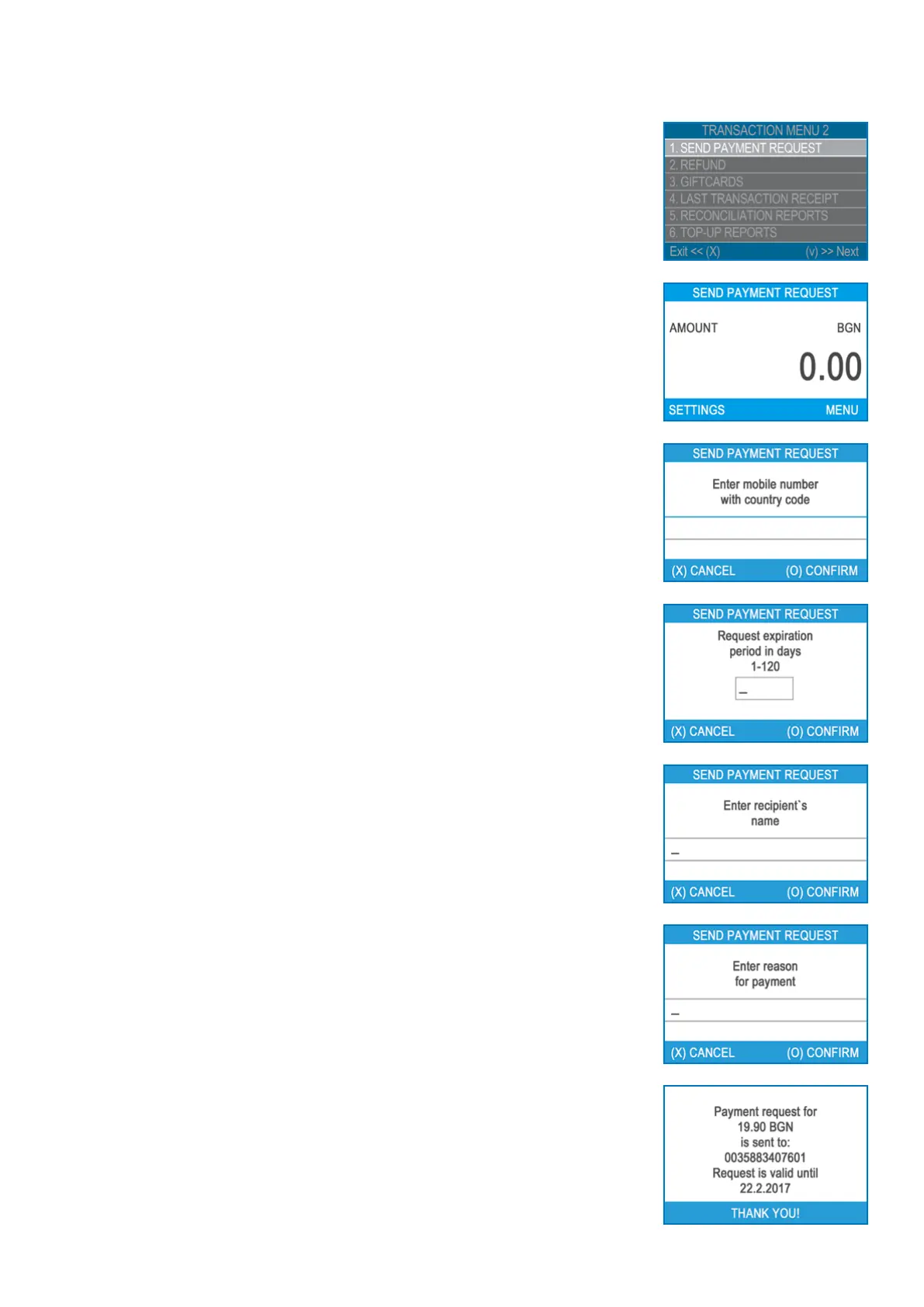
Step 1: From the home screen, press (F1) from the keyboard in order to enter
the Transacon type menu. Go to Transacon menu 2 and select SEND PAYMENT
REQUEST by pressing key (1). The myPOS Mini terminal will display the SEND
PAYMENT REQUEST screen.
Step 2: Enter the amount of the request and conrm with the green key (O).
Step 3: Enter the customer’s mobile number with the country code and conrm with
the green key (O ENTER).
Step 4: Enter period in days, aer which the Payment request will expire. The period
should be between 1 - 120 days. Conrm with the green key (O ENTER).
Step 5: Enter recipient’s name using the device keyboard and conrm with the green
key (O ENTER).
Step 6: Enter reason for payment using the device keyboard and conrm with the
green key (O ENTER). The payment request is successfully sent.
Step 7: Informaon about the Top-Up operaon is displayed. Pres any key to
connue.



 To Next Page