ENGLISH
MENU OPTIONS
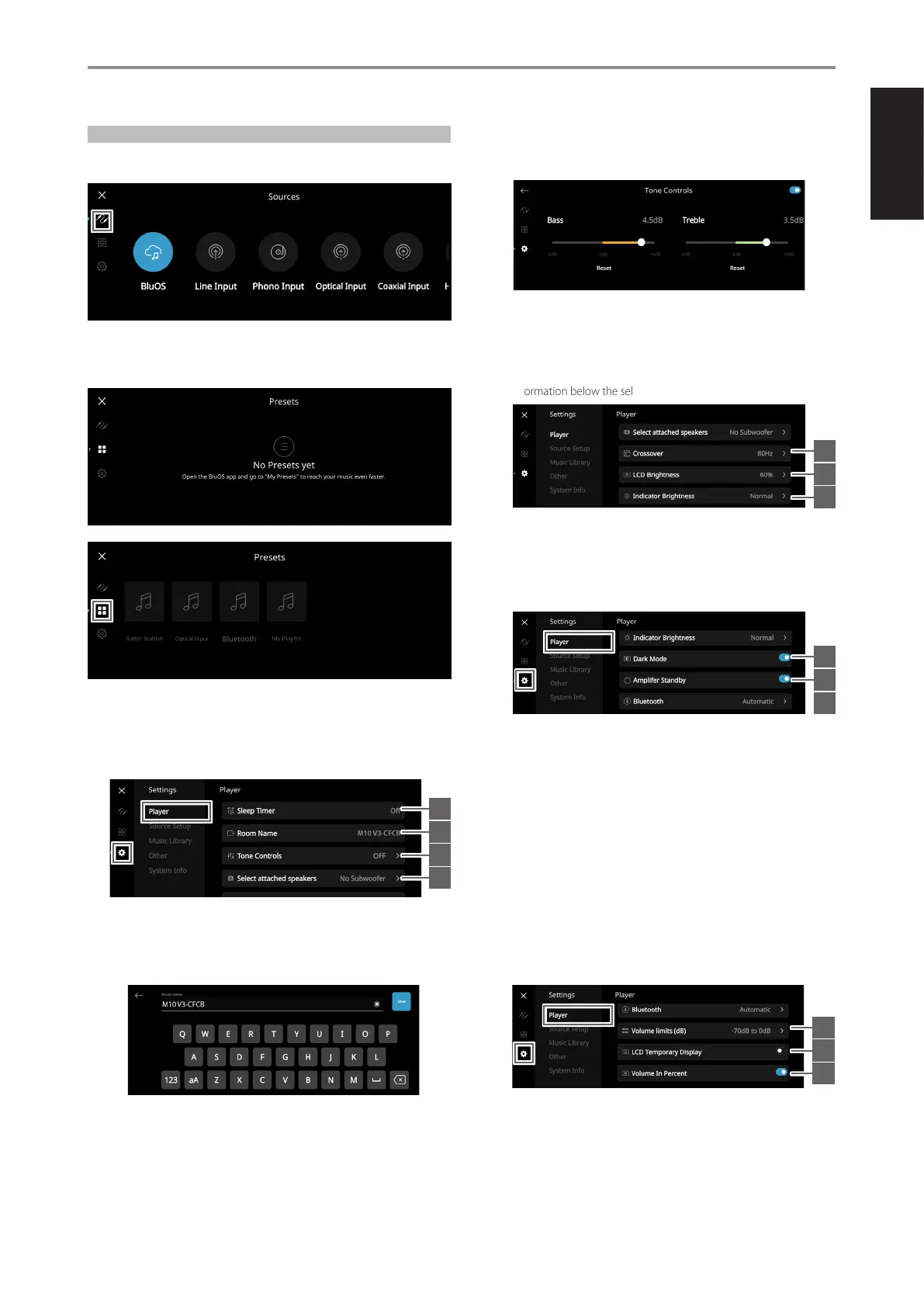
SOURCES
Select preferred Source to access or playback contents
PRESETS
Use BluOS App to program into Presets your favorite radio stations, music
streams, playlists or Sources
SETTINGS
Configure or display M10 V3 settings
Player
1 Sleep Timer: Stop playback after a set amount of time via gentle
volume decline
2 Room Name: Create a customized room name for the M10 V3
using the pop up keyboard
3 Tone Controls: Swipe to boost or reduce Bass and Treble response.
Tone Controls (Bass and Treble) can be enabled or disabled, and they
can also be reset.
4 Select attached speakers: Select the appropriate option based on
the number of subwoofers connected: 1 Subwoofer (connected to
SUBW OUT 1 only), 2 Subwoofers (one connected to SUBW OUT 1
and one to SUBW OUT 2), or No Subwoofer.
5 Crossover: The subwoofer will reproduce only low frequency
information below the selected crossover setting.
6 LCD Brightness: Adjust front panel display brightness level
7 Indicator Brightness: Change NAD logo indicator brightness to
Normal, Dim or Off
8 Dark Mode: Background of Front View display for particular source
is either dark (enabled) or bright (disabled)
9 Amplier Standby: Maintain network connection at network
standby mode
Enabled: M10 V3 automatically switches to network standby mode
after 15 minutes of no user interaction or active source input.
The M10 V3 maintains network connection at network standby
mode with reduced system performance. To wake up M10 V3
from network standby mode, stream content to M10 V3 using the
BluOS App, touch the front panel or press either rear panel Standby
button or o button of BC1 remote control.
Disabled: M10 V3 will not enter network standby mode even with
prolonged no user interaction or active source input.
10 Bluetooth: Set Bluetooth connection to Manual, Automatic, Guest
or Disabled Bluetooth availability
11 Volume limits (dB): Set volume range from lowest to highest level
in dB units
12 LCD Temporary Display: Enabled mode will turn off front panel
display temporarily after 30 seconds of non-user interface. To
restore the front panel display while in this mode, simply touch the
front panel. Disabled mode will keep the front panel display active.
13 Volume In Percent: Volume level is displayed in percent when
enabled. At disabled mode, volume level is displayed in dB.
IDENTIFICATION OF CONTROLS
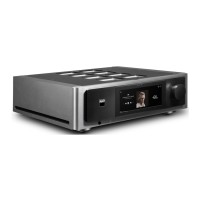
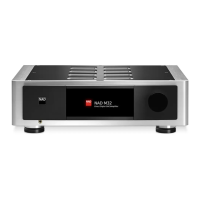
TOP AND FRONT VIEW
11
1
2
3
4
8
9
10
11
12
13
5
6
7


 To Next Page