ENGLISH
9
IDENTIFICATION OF CONTROLS
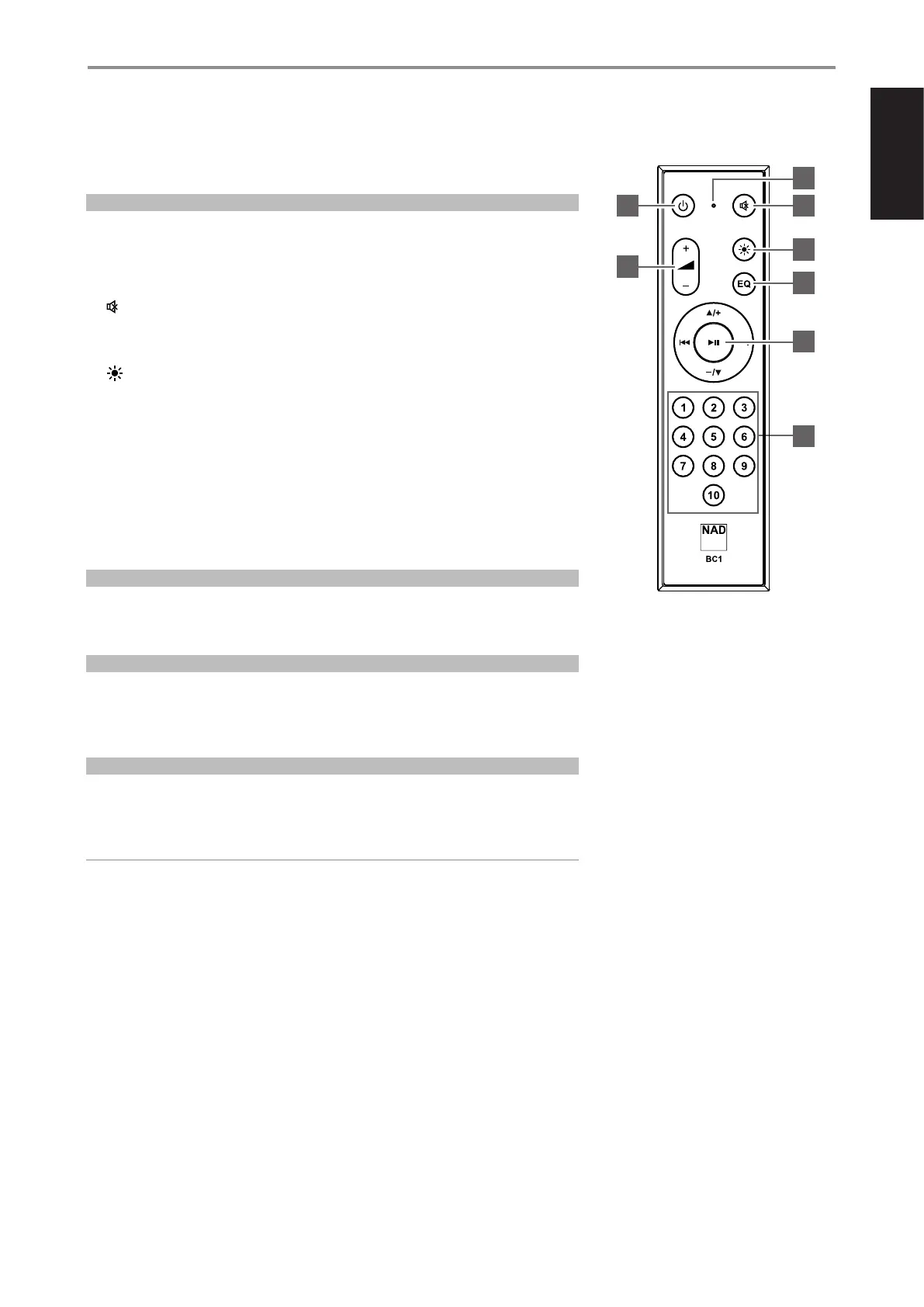
BC1 REMOTE CONTROL
The BC1 remote control operates at a distance of at least 23 feet (7 meters). Two AAA batteries should
be fitted in the battery compartment at the rear of the remote control handset. Ensure that the
batteries are correctly oriented and installed as indicated on the base of the battery compartment.
USING BC1 REMOTE CONTROL
1 LED indicator: Blinks whenever a command is sent.
2 o: Switch from network standby mode (no display) to operating mode and vice-versa
3 : Temporarily switch off or restore audio. Press again or adjust Volume level to restore audio.
4 5VOL6: Increase or decrease volume level
5 : Vary brightness level of the front panel display and Status Indicator (NAD logo)
6 EQ: Toggle to select through saved Dirac Filter settings
7 5/6: User defined. Function can be assigned via IR Learning.
4: Go to the next song/file
3: Go to the beginning or previous song/file
ENTER: Start or pause playback
8 1 to 10 numbered buttons: Select Preset number
PRESETS
Using the Preset buttons on the BC1 remote control, you can easily switch between Preset 1
through 10 without opening the BluOS app. Presets are setup and configured via the BluOS App.
PROGRAMMING
Both p and 6 buttons on the navigation dial of the BC1 remote control are not assigned any
commands and are programmable. Using the BluOS App, you can assign or program applicable
commands to these buttons via IR Learning (Settings
Player
IR Remote
IR Learning).
CHANGING IR CHANNELS
If you have multiple NAD and Bluesound players in your home and want to control them with
your BC1 remote control, you can adjust the IR Channel setting on the remote to prevent
unintended commands from being sent to your other players.
IMPORTANT
Ensure your BC1 remote control works correctly with your M10 V3 by having them both congured
and set to the same IR Channel.
Changing the IR Channel Setting on your BC1 Remote Control
The BC1 remote control can be programmed from IR Channel 0 to IR Channel 7.
1 To change the IR Channel setting on your BC1 remote control, press and hold both o button
and the Preset number button corresponding to your desired IR Channel. Release both buttons
when the LED indicator starts flashing.
2 To change to IR Channel 0, press and hold both o button and Preset 10.
Changing the IR Channel on your C 700 V2
To change the IR Channel being used by your M10 V3
1 Open the BluOS App.
2 Select the player (M10 V3) you would like to configure the IR Channel setting.
Go to Settings Player IR Remote BluOS Remote.
4 Select the IR Channel setting (Channel 0 to Channel 7). For your BC1 remote control and
M10 V3 to work together, the IR Channel setting of M10 V3 must be the same as that of the BC1
remote control.
1
2
4
3
5
6
8
7



 To Next Page