ENGLISH
7
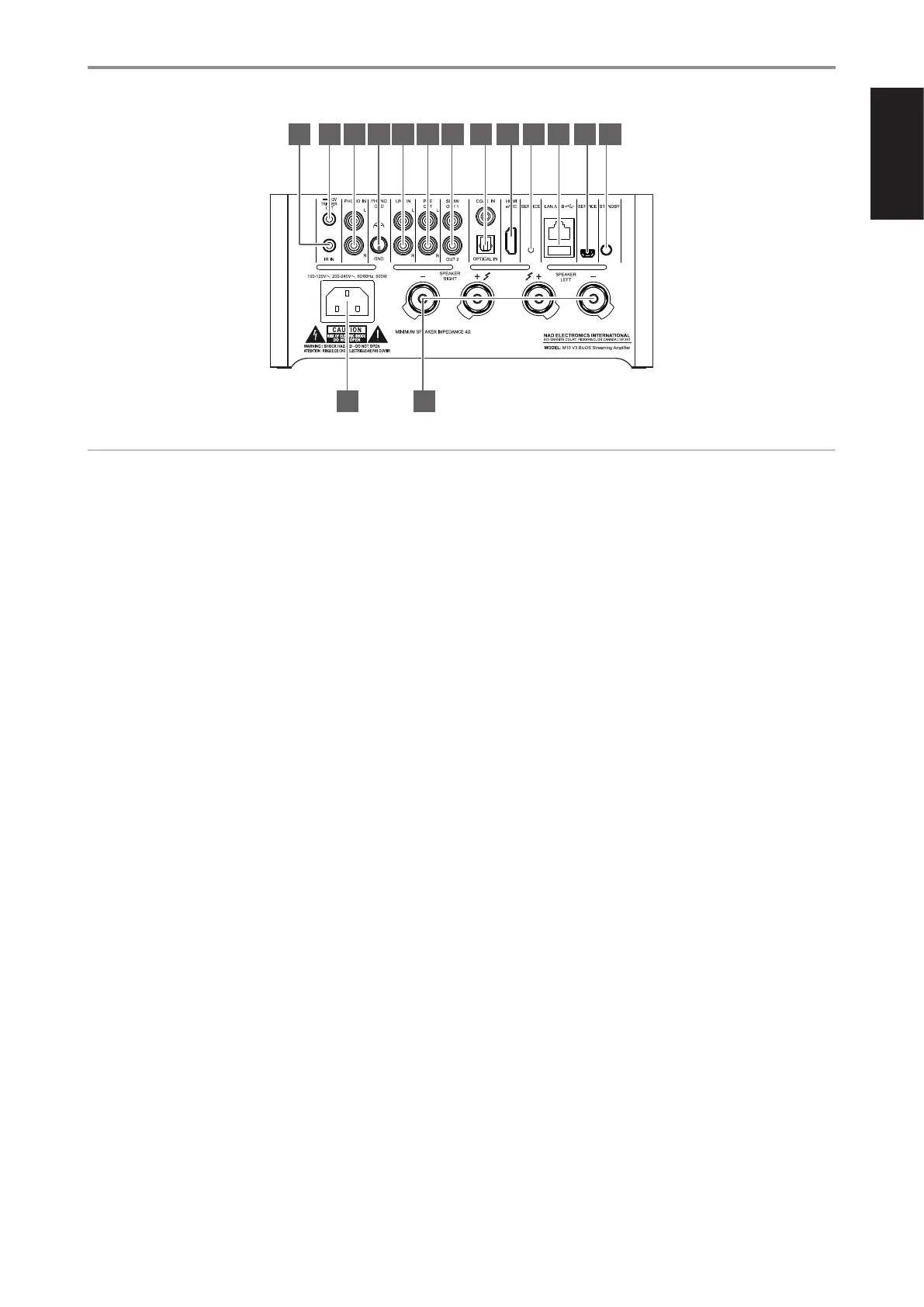
1 IR IN
• This input is connected to the output of an IR (infrared) repeater
(Xantech or similar) or IR output of another compatible device to
allow control of the M10 V3 from a remote location.
IR LEARNING
IR Learning enables any IR remote control to learn BluOS basic remote
control codes. With the learned codes, the configured remote control
can be used to command your M10 V3.
a To program IR Remote commands into your M10 V3, go to the
Settings menu of the BluOS App, select Player, IR Remote and
then IR Learning.
b Select the function desired from the IR Remote menu, point an IR
remote control at the unit and press the button to perform that
function.
c Once successful, a check mark will appear beside the programmed
function. You can now use the IR remote control to command the
M10 V3 with the programmed functions.
2 +12V TRIGGER OUT
• The +12V TRIGGER OUT is designed to control external devices that
have a +12V DC TRIGGER IN.
• Connect this +12V TRIGGER OUT to the +12V DC TRIGGER IN of the
other device using a cable with 3.5mm male plug.
• This output will be 12V when the M10 V3 is ON and 0V when it is
either OFF or in standby mode.
3 PHONO IN
• Input for a Moving Magnet (MM) phono cartridge only. Connect the
twin RCA-to-RCA lead from your turntable to this input if you are
using a Moving Magnet cartridge.
• If your turntable includes a ground lead wire, it can be connected
to the PHONO GND (refer to item 4).
4 PHONO GND
• Use this ground terminal to connect to ground PHONO sources like
phono preamplifiers and turntables.
• To connect the ground lead wire from a phono preamplifier or
turntable to the M10 V3 phono ground terminal, unscrew first the
terminal to expose the hole. Insert the lead into the hole and then
tighten the terminal to secure the connection.
5 LINE IN
• Input for line level sources such as CD player, tuner or any
compatible devices. Use dual RCA-to-RCA cable to connect the
source device’s left and right “Audio Output” to these line input
ports.
• The sources will appear as “Line Input” in the navigation drawer of
the BluOS App.
6 PRE OUT
• Use dual RCA-to-RCA cable to connect PRE OUT to the
corresponding analog audio input of compatible devices such
as amplifiers, receivers or other applicable devices. This makes it
possible to use the M10 V3 as a preamplifier to such devices.
7 SUBW (SUBWOOFER) OUT 1, OUT 2
• Connect SUBW 1 and/or 2 to the low level input of corresponding
powered subwoofer.
• Any frequency below the selected crossover point (accessible
through the BluOS App) will be routed through SUBW OUT 1 and/
or OUT 2. The default crossover setting is 80Hz.
8 COAX IN/OPTICAL IN
• Connect to corresponding optical and coaxial digital output of
sources such as CD or BD/DVD players, digital cable box, digital
tuners and other applicable components.
9 HDMI eARC
• Connect to TV that supports HDMI Control (CEC) and Audio
Return Channel (ARC) or Enhanced Audio Return Channel (eARC)
functions. HDMI CEC, ARC and eARC functions are possible if
external devices that also support these features are interconnected
to M10 V3 via HDMI connection.
• Use HDMI cable to connect HDMI ARC/eARC to corresponding
HDMI ARC/eARC port of TV. Use HDMI cable that has Ultra High
Speed HDMI Certification Label to enjoy support for larger
bandwidth and high bitrate format.
• With ARC/eARC connection established, M10 V3 will output audio
signal from TV.
4 5 6 9 10 10 12117 8
13 14
21 3
ATTENTION!
Please ensure that the M10 V3 is powered o or unplugged from the mains power outlet before making any connections. It is also advisable to power down
or unplug all associated components while making or breaking any signal or AC power connections.
IDENTIFICATION OF CONTROLS
REAR VIEW



 To Next Page