ENGLISH
DISPLAY (TOUCH PANEL DISPLAY)
• Display visual information about current music or media source,
settings or menu options.
• Touch control functions are also displayed depending upon menu
option selected.
IDENTIFICATION OF CONTROLS
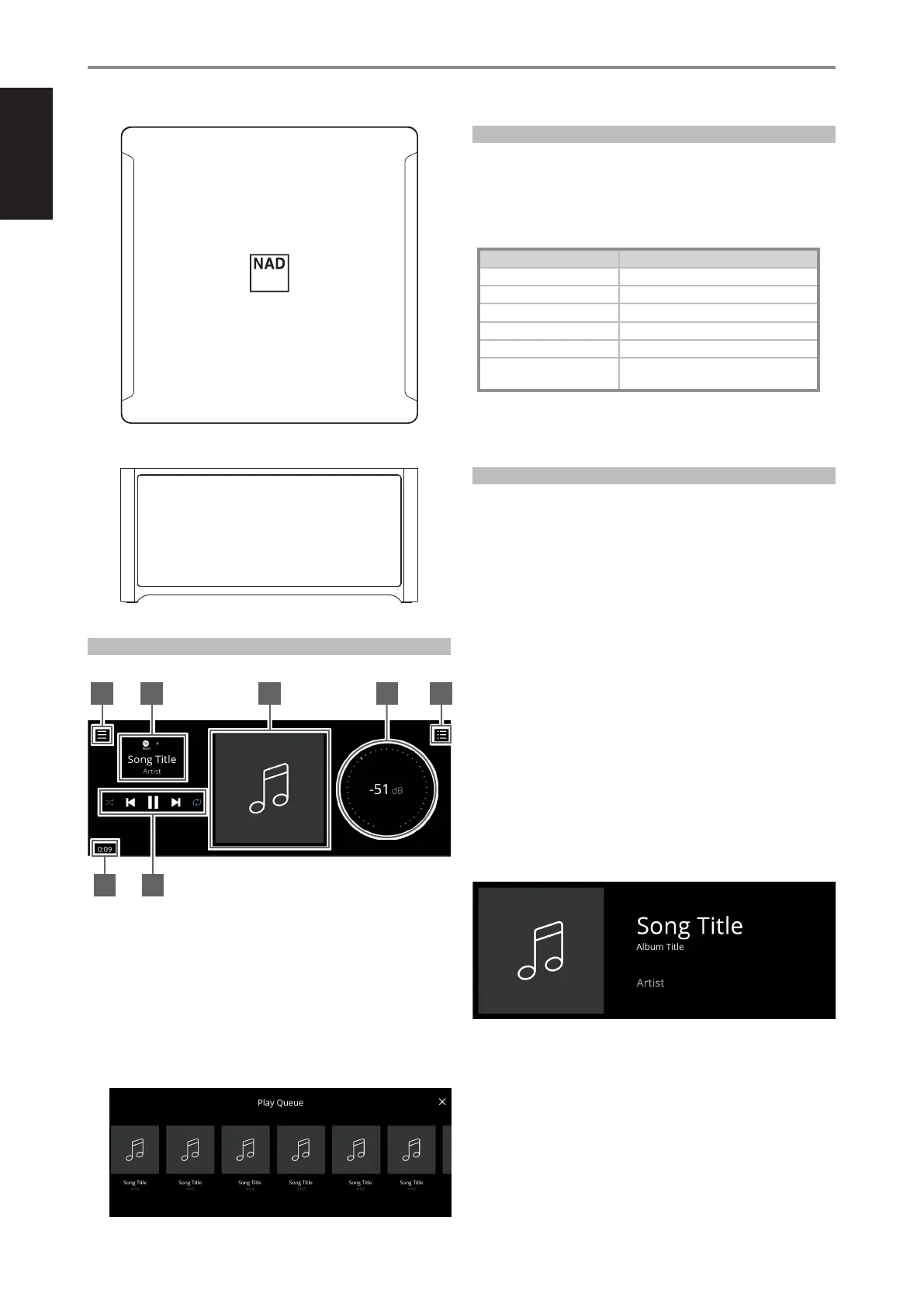
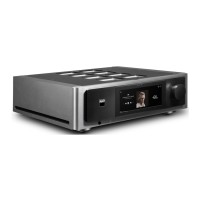
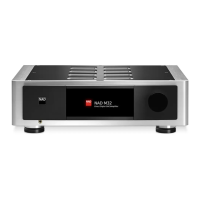
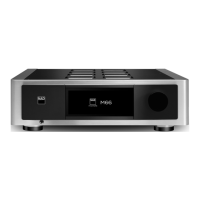
TOP AND FRONT VIEW
10
M10 V3
STATUS INDICATOR (NAD LOGO)
• This indicator will be amber when M10 V3 is in vacation mode.
• When M10 V3 is powered up from vacation mode, this indicator will
change from amber to solid white.
Table of the color blink codes of the NAD logo indicator and their
corresponding descriptions.
BLINK CODES DESCRIPTION
Flashing red Upgrade mode
Flashing red Powering up, rebooting, booting up
Solid amber Vacation mode
Solid red Cannot boot up; drive error
Solid white Indexing
Solid white Connected to network – ready to use with
BluOS App
SAMPLE DISPLAY SCREEN
NOW PLAYING
1 New screen is opened showing Sources, Presets and Settings menu
options. Refer to MENU ITEMS later in this section.
2 Information about album, artist and music name
Logo or icon for music service provider or media source input (analog,
optical, coaxial, Bluetooth, HDMI eARC, etc.)
3 Album art cover
4 Use own finger to trace and adjust Volume level
5 Display changes into screen showing “Play Queue” that was setup
via the BluOS App. “Play Queue” is a list of songs or tracks that are
populated and put on queue via the BluOS App.
6 Playback controls for applicable media (song, title, file, music station
and others)
0 Skip to next media
4/j Play or pause current media
9 Skip back to previous media
m/, Repeat and random mode controls are also available for
selection
7 Elapsed playback time of current music
FRONT VIEW
Now Playing display will switch to selected Front View default screen
if there is no user interaction within 10 seconds. Front View display will
remain until a user interface is made. Front View display can be configured
via Settings-Source Setup menu.
1
7 6
2 3 4 5


 To Next Page