ENGLISH
8
IMPORTANT
• Ensure that the audio setting/format of ARC/eARC-connected devices to
M10 V3 is set to PCM only.
• Only audio output signal from TV is supported by HDMI eARC port.
• The HDMI eARC port on the M10 V3 does not support video output.
10 SERVICE
• These USB port and tact switch are for servicing purposes only. Not
for consumer use.
11 LAN/USB
LAN
• LAN connection must be setup for wired connection to be
established. Set up a Wired Ethernet broadband router with
broadband internet connection. Your router or home network
should have a built-in DHCP server to consummate the connection.
• Using a standard straight-through Ethernet cable (not supplied),
connect one end of the Ethernet cable to the LAN port of your wired
Ethernet broadband router and the other end to M10 V3’s LAN port.
NOTES
• NAD is not responsible for any malfunction of the M10 V3 and/or the
internet connection due to communication errors or malfunctions
associated with your broadband internet connection or other
connected equipment. Contact your Internet Service Provider (ISP) for
assistance or the service bureau of your other equipment.
• Contact your ISP for policies, charges, content restrictions, service
limitations, bandwidth, repair and other related issues pertinent to
internet connectivity.
USB
• Connect to this USB port a USB drive formatted as FAT32 or NTFS.
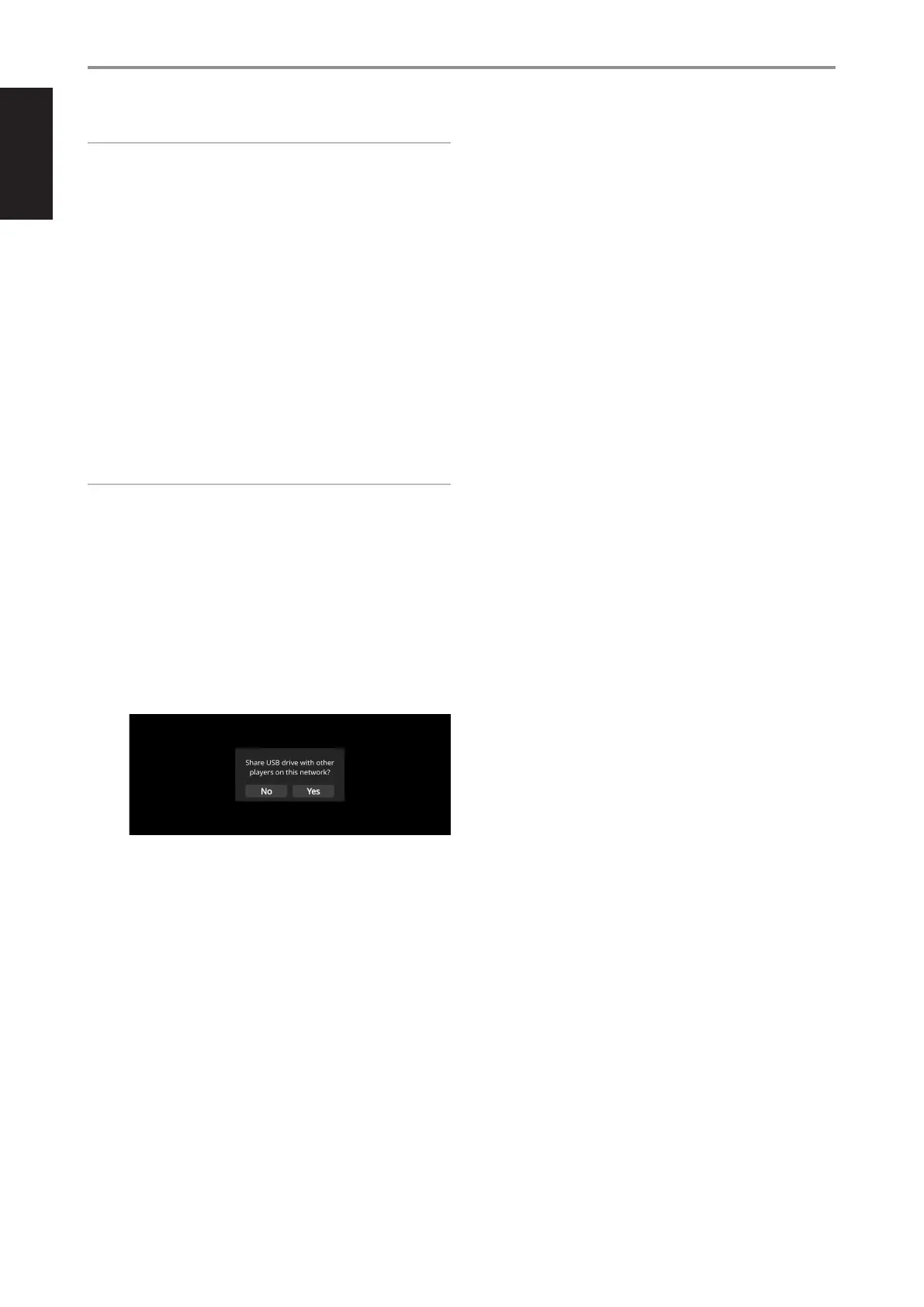
• Upon detection of the connected USB drive, an onscreen prompt
appears in the BluOS App and also in the front panel display.
Yes: USB drive is shared with other players on the network from
the local Library. Select “Library” from the BluOS App to access the
shared USB drive files.
No: USB drive access is restricted only to M10 V3. The connected
USB drive appears as a Local Source (USB) in the BluOS App. Access
and playback music stored in the connected USB drive by selecting
“USB” from the BluOS App.
12 STANDBY BUTTON
• Press Standby button to switch M10 V3 from network standby
mode or vacation mode to operating mode.
NETWORK STANDBY MODE
With Amplifier Standby set to Enabled (Settings Player Amplifier
Standby), the M10 V3 will automatically switch to network standby
mode after 15 minutes of no user interaction or active source input. The
M10 V3 maintains network connection at network standby mode with
reduced system performance.
When the M10 V3 enters network standby mode, the front panel
display turns off but the Status Indicator (NAD logo) remains
illuminated in white.
To wake up M10 V3 from network standby mode, proceed with any of
the following steps
• Press rear panel Standby button
• Press o button of BC1 remote control
• Touch the front panel
• Stream content to M10 V3 using the BluOS App
Power consumption at network standby mode is less than 4W.
VACATION MODE
To activate vacation mode, hold down the rear panel Standby button
until the Status indicator (NAD logo) starts flashing amber and then
turns to solid amber.
When set to vacation mode, the M10 V3 will completely power off with
no network or amplifier activity, making it inaccessible via the network
or the BluOS App.
To wake up M10 V3 from vacation mode, proceed with any of the
following steps:
• Press rear panel Standby button
• Press o button of BC1 remote control
The Status Indicator (NAD logo) will change from amber to solid white.
In Vacation Mode, power consumption is less than 0.5W.
13 AC MAINS INPUT
• The M10 V3 comes supplied with two separate mains power cords.
Select the mains power cord appropriate for your region.
• Before connecting the power cord’s plug to the mains power outlet,
ensure that the other end of the power cord is firmly connected to
M10 V3’s AC Mains input socket..
• Always unplug the power cord from the mains power outlet before
disconnecting the other end of the power cord from M10 V3’s AC
Mains input socket.
14 SPEAKERS
• Connect M10 V3’s Right speaker terminals marked “R +” and “R-” to
the corresponding “+” and “-“ terminals of your designated right
speaker. Repeat the same for M10 V3’s Left speaker terminals and
corresponding left speaker.
IDENTIFICATION OF CONTROLS
REAR VIEW



 To Next Page