Using the BRM2 Brain Monitor
BRM2 Brain Monitor Reference Manual | 27
File manager
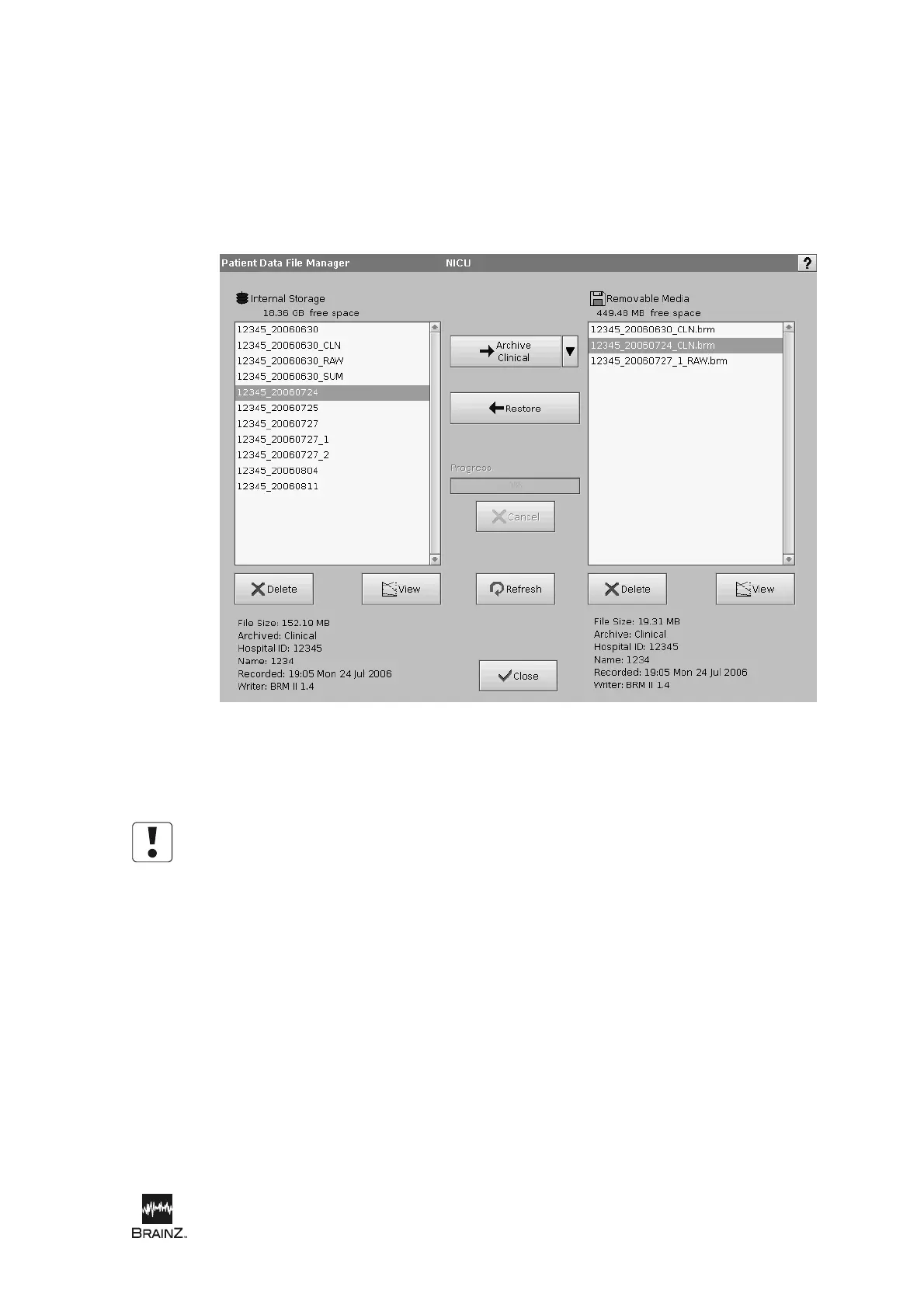
The Patient Data File Manager screen appears when you touch:
• Manage Data from the Main Menu screen
• Tools (during an assessment), then select File Manager.
Archiving data files
Do not insert or connect more than one removable storage device at a time.
To archive data files to removable media:
1. Insert a Compact Flash card (installed in a PCMCIA adaptor) into either of the PCMCIA slots (on
the left side of the Monitor) or, connect a USB drive to either of the USB ports (at the rear of the
Monitor).
2. Wait 5 seconds, then touch Refresh to update the file lists in the Patient Data File Manager
screen.
3. Select the assessment you want to archive in the Internal Storage file list.
4. Check that there is sufficient free space on the removable media (displayed above the Removable
Media file list).
5. To archive the assessment at the default level ("clinical"), touch Archive. To archive the
assessment at "raw" or "summary" levels, touch the arrow next to the Archive button, then
select the appropriate level from the pop-up menu.
Figure 10: Patient Data File Manager screen





 To Next Page