2-17
2. Installation
Connecting to a Network
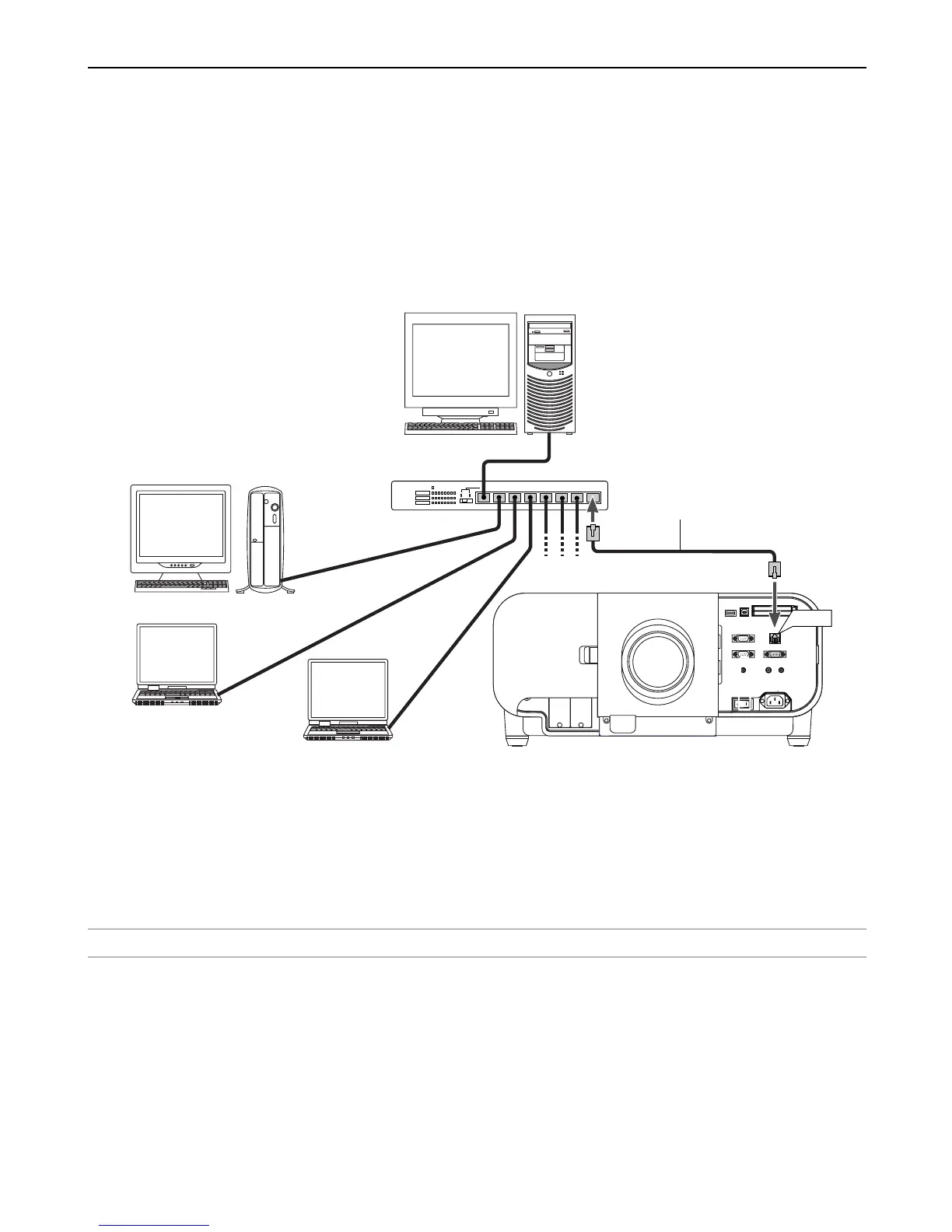
With the LAN connection, you can control the projector over the network using a computer to switch the unit on/off, select the input and others.
* To control the projector over the network using a computer, use the Dynamic Image Utility 2.0 contained on the User Supportware CD-ROM or the
HTTP Server feature.
* With the Image Express Utility 1.0 contained on the supplied User Supportware CD-ROM, you can project your PC screen image to the projector
over the network.
* With a use of the supplied User Supportware CD-ROM and the optional wireless LAN card (SWL-2100-N*), you can control the projector wirelessly
or send your PC screen image to the projector over the network using a computer.
Example of LAN connection
Using the HTTP Server function
1. Configure your LAN settings such as IP address on the pro-
jector. (See “LAN Mode” on page 8-19)
2. Start the Web browser on the computer connected to the net-
work and execute HTTP server functions. (See “Operation
Using an HTTP Browser” on page 10-11)
IN
USB
(
MOUSE/HUB
)
USB
(
PC
)
PC CARD
2
1
PC CONTROL
IN
OUT
OUT
SC TRIGGER REMOTE 2
REMOTE 1
LAN
AC IN
AUDIO
AUDIO
AUDIO OUT
R
R/Cr
G/Y
B/Cb
V
H/HV
R
L/MONO
R
L/MONO
R
L/MONO
L/MONO
OPTION 1 OPTION 2
DVI
RGB OUT
RGB 1
RGB 2
VIDEO S-VIDEO
LAN
Server
Hub
LAN cable (not supplied)
Using the User Supportware
1. Configure your LAN settings such as IP address on the pro-
jector. (See “LAN Mode” on page 8-19)
2. Install the software contained on the User Supportware CD-
ROM into the computer connected to the network. See “6 Us-
ing the Projector in a Network” on page 6-1.
NOTE: To control the projector from the PC connected to a network, from the Advanced menu select [Projector Options]
→
[Setup]
→
[Page 4] and then place a check
mark on “Idle Mode”. See page 8-17.



 To Next Page