English−20
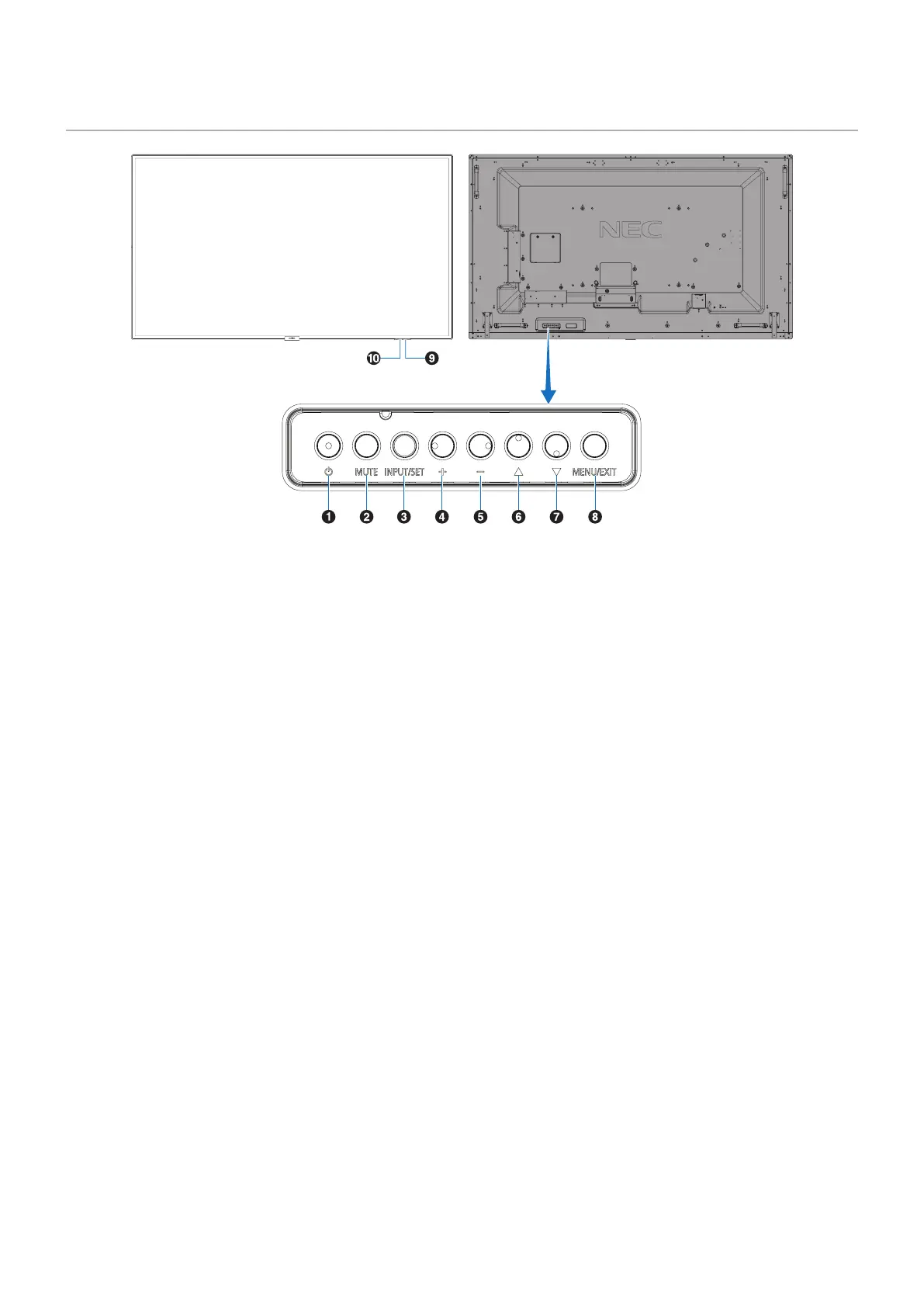
Control Panel
A Power Button ( ⏻ )
Switches the power on/standby. See also page 33.
B Mute Button (MUTE)
Switches the audio mute on/off.
C Input/Set Button (INPUT/SET)
INPUT: Cycles through the available inputs when OSD
menu is turned off. [DisplayPort], [HDMI1], [HDMI2],
[Media Player], [OPTION]*. Input names are shown as their
factory preset name.
SET: Acts as a “set” button when making a selection when
the OSD (On Screen Display) menu is open.
*: This function depends on which Option Board you are using.
D Plus Button (+)
Increases the audio output level when the OSD menu is
turned off.
Acts to move the highlighted area to the right when
navigating through the OSD menu options.
Acts as (+) to increase the adjustment of an OSD menu
option after it has been selected with the SET button.
E Minus Button (–)
Decreases the audio output level when the OSD menu is
turned off.
Acts to move the highlighted area to the left when navigating
through the OSD menu options.
Acts as (–) to decrease the adjustment of an OSD menu
option after it has been selected with the SET button.
F Up Button (r)
Activates the OSD menu when the OSD menu is turned off.
Acts as r button to move the highlighted area up to select
adjustment items within the OSD menu.
G Down Button (s)
Activates the OSD menu when the OSD menu is turned off.
Acts as s button to move the highlighted area down to
select adjustment items within the OSD menu.
H Menu/Exit Button (MENU/EXIT)
Activates the OSD menu when the OSD menu is turned off.
Acts as a back button within the OSD to move to the
previous OSD menu.
Acts as an EXIT button to close the OSD when on the main
menu.
I Remote Control Sensor and Power Indicator
Receives the signal from the remote control (when using the
wireless remote control). See also page 34.
Glows blue when the LCD monitor is in active mode*.
Green and Amber blink alternately when the [SCHEDULE
INFORMATION] function is enabled.
When a component failure is detected within the monitor, the
indicator will blink red or blink a combination of red and blue.
*: If “OFF” is selected in the [POWER INDICATOR] (see page 86), the
LED will not glow when the LCD monitor is in active mode.
J Room Light Sensing Sensor
Detects the level of ambient light, allowing the monitor
to make automatic adjustments to the backlight setting,
resulting in a more comfortable viewing experience. Do not
cover this sensor. See page 77.











 To Next Page