VIRDI AC 1000 User Guide 47
UNION COMMUNITY CO.,LTd.
3Fl. Hyundai Topics Bldg, 44-3 Bangi-dong, Songpa-gu, Seoul, Korea 138-050,
Tel: 82-2-6488-3000, Fax: 82-2-6488-3099, E-Mail:sales@unioncomm.co.kr,
Working mode after authentication depends on <start time>, <leave time>,
and <normal time> settings. The previous authentication mode is maintained if
no mode is set for a specific time period.
4.2.4. Working mode expansion using multi-key authentication
- If more than 5 working modes such as start, leave, outside work, return, and
general are required, it can be expanded up to 41 modes.
- After setting Menu Æ 3.Option Æ 1.Application Æ [1] T&A, in <Multi Fn-key>,
set more than one key to ‘O’. However, the keys set to ‘X’ are not the case.
- Because a mode is defined with a number key, enter a number key after
entering the function key for authentication. In the server program,
authentication mode is “F3+1”.
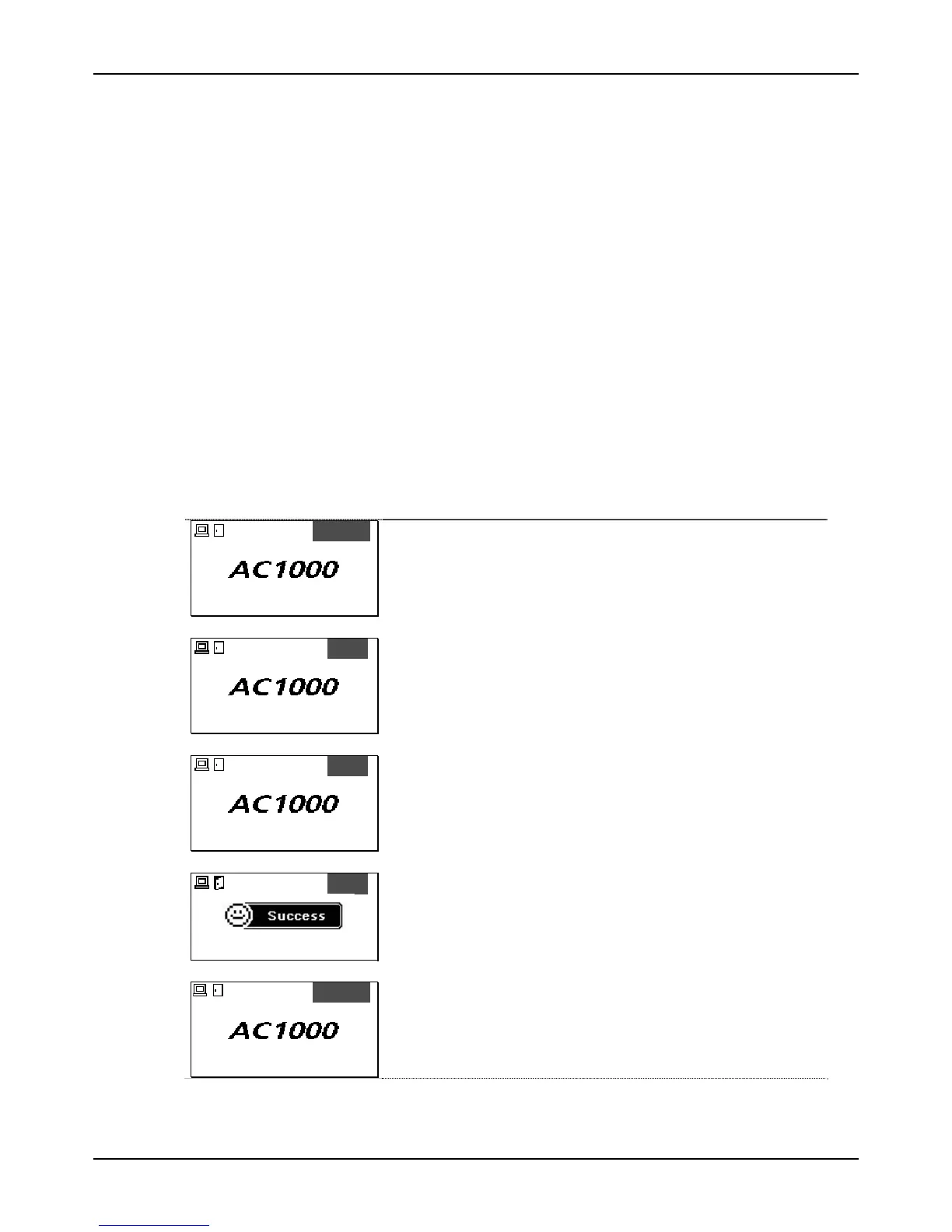
- For example, when [F4] is set to [O] and <start time> is set to ‘07:00~09:30’, if
a fingerprint user tries authentication “F4+1”mode
START
07/08/25 AM 7:58
In the default screen, press [F4].
▼
F4+0
07/08/25 AM 7:58
The mode is changed to “F4+0”.
Press [1].
▼
F4+1
07/08/25 AM 7:58
When the mode is changed to “F4+1”, enter the
fingerprint.
▼
F4+1
07/08/25 AM 7:58
When authentication is successful, a success message
appears.
▼
START



 To Next Page