119
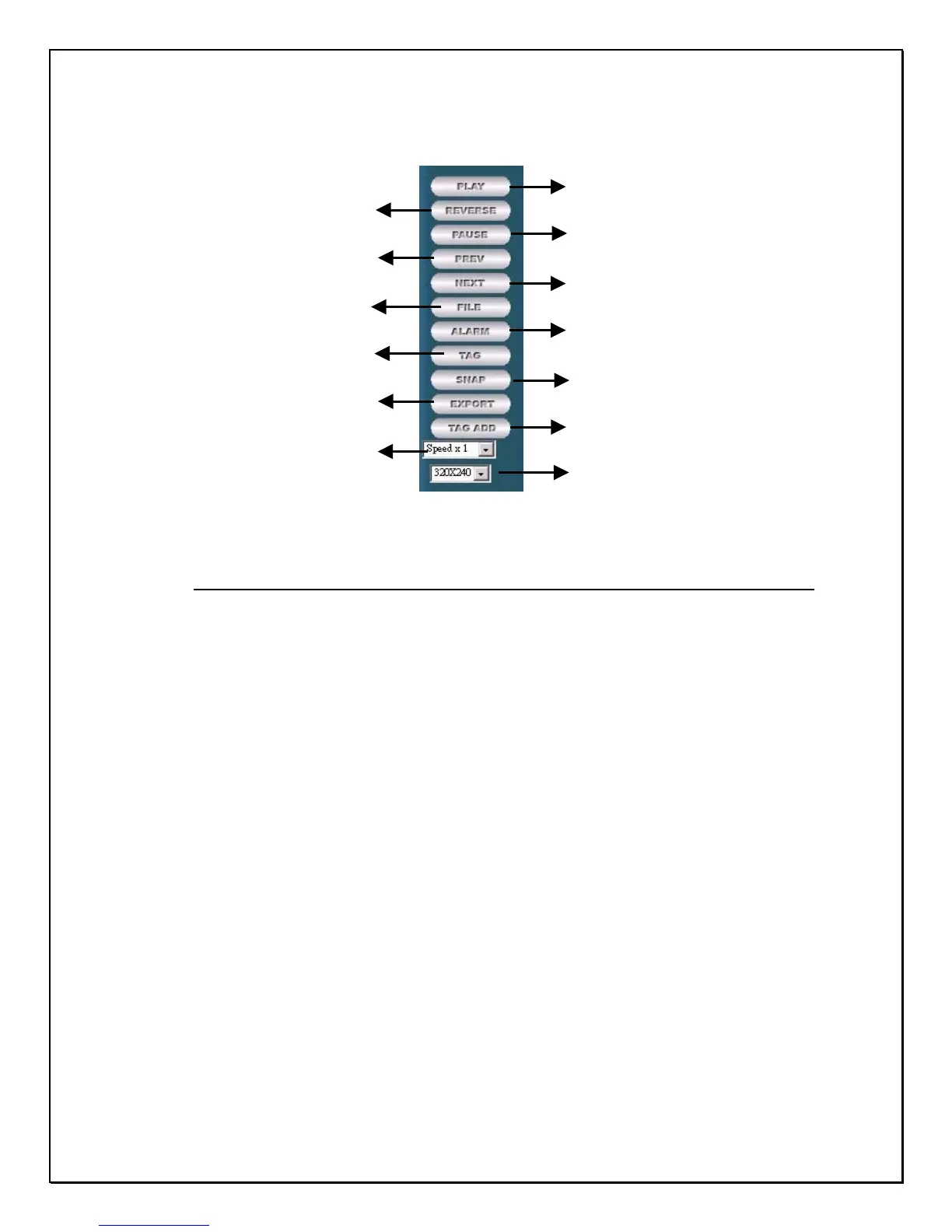
Figure 15-27: Playback Side Toolbar
1. File Button: Click this button to find the file you want to view
2. Alarm File Button: Click this button to find a file by alarm
3. Tag File Button: Click this button to find a file by its tag
4. Play Button: Click this button to play the file
5. Reverse Button: Click this button to rewind the played image
6. Pause Button: Click this button to stop playing the playback
7. Previous Button: Click this button to go to the previous frame
8. Next Button: Click this button to go to the next frame
9. Snapshot Button: Click this button to take a snapshot and print it out
10. Export Button: Click this button to export and save an image to disk
11. Tag Button: Click this button to find a tagged image or file
12. Speed Drop Down List: Click this list to change the viewing speed
13. Zoom Out Button: Click this button to zoom in and out of the image
The very next screen puts you in playback mode. On the left side you will see a
playback link. This link will allow you to view all playback images.
1
File button
2
Alarm File button
3
Ta
File button
4
Pla
back
5
Reverse Button
6
Pause Button
7
Previous Button
8
Next File Button
9
Sna
shot Button
10
Ex
ort file
11
Ta
Add Button
12
Pla
back S
eed
13
Zoom button


 To Next Page