85
Understanding the Recorded database
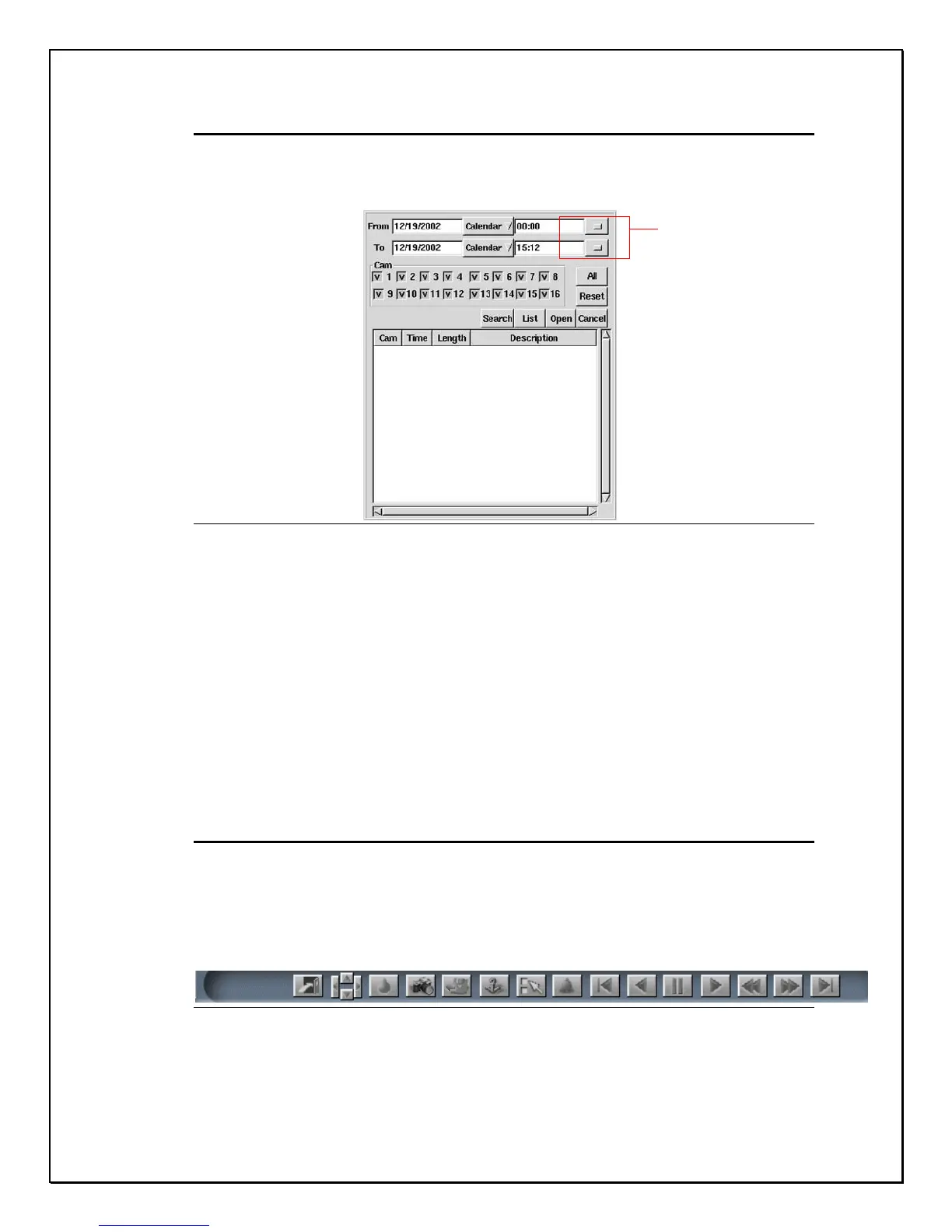
The Pop-up database is the first start to viewing playback images. There are
many aspects to the database. Lets take a closer look.
Figure 13-2: Pop-up Database Screen
1. Calendar Search: Clicking the calendar button allows users to
select the date by which they want to search.
2. Time Search: Clicking the Time Search button allows users to
select a specific time they would like to view.
3. Camera Search: Select the camera you want to view playback
images.
4. Search Button: Click the search button to search for a file.
5. List Button: Click this button to display a list of the recorded
database.
6. Open: Click here to view a file.
7. Cancel Button: Cancel any action.
8. Reset Button: Click this button to reset any functions.
Understanding the Bottom Toolbar
The Bottom Toolbar appears only when you click the playback icon. Before a
recorded file is clicked, the bottom toolbar will be disabled. Once a recorded file
is selected the icons are enabled and can be used. Lets view what each icon
means.
Figure 13-3: Bottom Toolbar
Time search


 To Next Page