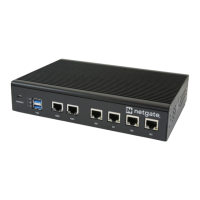
Security Gateway Manual Netgate-8300
The newly assigned interface will have its own entry under the Interfaces menu and elsewhere in the GUI.
2.7.3 Interface Configuration
The new interface must be enabled and configured.
• Navigate to Interfaces > OPTx
• Check Enable interface
• Set custom name in the Description, e.g. GUESTS, DMZ, etc.
• Set the IPv4 Address and CIDR mask for the new LAN
For this example, 192.168.2.1/24.
• Do not add or choose an IPv4 Upstream gateway
• Uncheck Block private networks
This interface is a private network, this option would prevent it from functioning.
• Uncheck Block bogon networks
The rules on this interface should only allow traffic from the subnet on the interface, making this option unnec-
essary.
• Click Save
• Click Apply Changes
The lack of a selected gateway in the interface configuration causes the firewall to treat the interface as a LAN type
interface.
The firewall uses LAN type interfaces as sources of outbound NAT traffic but does not apply outbound NAT on traffic
exiting a LAN. The firewall does not add any extra properties on firewall rules to influence traffic behavior. The DNS
Resolver will accept queries from clients on LAN type interfaces.
See also:
Interface Configuration
2.7.4 DHCP Server
Next, configure DHCP service for this local interface. This is a convenient and easy way assign addresses for clients
on the interface, but is optional if clients will be statically addressed instead.
This configuration varies slightly depending on the DHCP server and version.
See also:
DHCPv4 Configuration
• Navigate to Services > DHCP Server, OPTx tab (or the custom name)
• Check Enable
• Configure the Address Pool Range, e.g. from 192.168.2.100 to 192.168.2.199
This sets the lower (From) and upper (To) bound of automatic addresses assigned to clients.
• The rest of the settings can be left at defaults
• Click Save
© Copyright 2024 Rubicon Communications LLC 65



 To Next Page