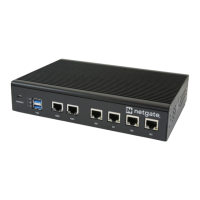
Security Gateway Manual Netgate-8300
Reinstall pfSense Plus Software
With the device back together and ready to proceed, the next step is to reinstall pfSense Plus software to the SSD. This
procedure is covered in detail in Reinstalling pfSense Plus Software.
Note: When prompted to select a ZFS Configuration during the installation, choose mirror.
When prompted for drives, select both NVMe drives, which will be nda0 and nda1.
The installer may select these drives automatically, but double check to be certain the selection is correct.
If there is no backup to restore, then no further steps are necessary. Login to the firewall and configure it as normal
(Initial Configuration).
Restore the Configuration
If a configuration was backed up earlier in this procedure, now is the time to restore it using the GUI or one of the
other methods mentioned in the pfSense software documentation section on Backup and Restore.
Re-arm the Intrusion Sensor
Opening the case to install the new drive will have triggered the intrusion alarm sensor, even when the device was
removed from power. The intrusion alarm causes the fans to run at a higher fixed speed until the sensor is re-armed.
Once pfSense software is up and running, follow the procedure in Re-arm the Chassis Intrusion Switch to reset the
sensor.
2.10 Add-On Expansion Card Installation
The Netgate® 8300 has two expansion card slots available for additional devices such as 25 Gbit/s or 100 Gbit/s network
interface cards.
The two expansion card slots have the following capabilities:
• 1x PCIe 3.0 x8 LP (Low Profile) slot which supports half-length low profile cards.
• 1x PCIe 4.0 x16 slot which supports full-height three-quarter length cards.
See also:
See Input and Output Ports for additional information on the expansion card slots.
Add-On Expansion Card Installation Outline
• Warnings and Precautions
• Required Tools and Hardware
• Installation Procedure
© Copyright 2024 Rubicon Communications LLC 96



 To Next Page