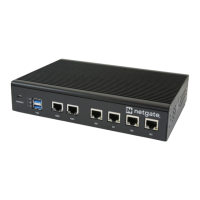
Security Gateway Manual Netgate-8300
1.2 Initial Configuration
Plug the power cable into the power port (shown in the Input and Output Ports section) to turn on the Netgate® Firewall.
Allow 4 or 5 minutes to boot up completely.
Warning: If the ISP Customer Premise Equipment (CPE) on WAN (e.g. Fiber or Cable Router) has a default IP
Address of 192.168.1.1, disconnect the Ethernet cable from the P10 port on the Netgate 8300 Security Gateway
before proceeding.
Change the default LAN IP Address of the device during a later step in the configuration to avoid having conflicting
subnets on the WAN and LAN.
1.2.1 Connecting to the Web Interface (GUI)
1. From the computer, log into the web interface
Open a web browser (Google Chrome in this example) and enter 192.168.1.1 in the address bar. Press Enter.
Fig. 1: Enter the default LAN IP address in the browser
2. A warning message may appear. If this message or similar message is encountered, it is safe to proceed. Click
the Advanced Button and then click Proceed to 192.168.1.1 (unsafe) to continue.
3. At the Sign In page, enter the default pfSense
®
Plus username and password and click Next.
• Default Username: admin
• Default Password: pfsense
1.2.2 The Setup Wizard
This section steps through each page of the Setup Wizard to perform the initial configuration of the firewall. The wizard
collects information one page at a time but it does not make any changes to the firewall until the wizard is completed.
Tip: The wizard can be safely stopped at any time for those who wish to perform the configuration manually or restore
an existing backup (Backup and Restore).
To stop the wizard, navigate away from the wizard pages by clicking the logo in the upper left of the page or by choosing
an entry from one of the menus.
Note: Ignore the warning at the top of each wizard page about resetting the admin account password. One of the steps
in the Setup Wizard is to change the default password, but the new password is not applied until the end of the wizard.
© Copyright 2024 Rubicon Communications LLC 5



 To Next Page