EasyManua.ls Logo

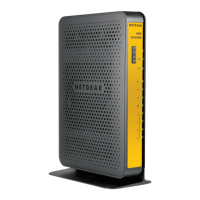
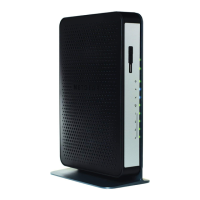
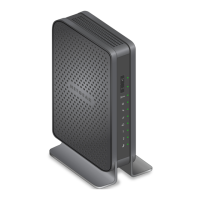
NETGEAR CG4500BDv2 - User Manual

NETGEAR CG4500BDv2
53 pages
Print Icon
To Next Page IconTo Next Page
Loading...
350 East Plumeria Drive
San Jose, CA 95134
USA
April 2013
202-11261-01
DOCSIS 3.0 N900 Wireless Data
Gateway CG4500BD User Manual

Questions and Answers

  • M
    maldonadosydneyAug 16, 2025
    How to restart NETGEAR CG4500BDv2 Gateway WiFi network?
    • B
      Brian RiosAug 16, 2025
      If your NETGEAR Gateway WiFi network is unresponsive, restart it by turning off and unplugging the cable data gateway. Then, plug it back in and turn it on, waiting two minutes for it to fully reboot.
  • D
    Devon WilsonAug 20, 2025
    Why is the Internet LED off on my NETGEAR CG4500BDv2 Gateway?
    • J
      Joseph GriffithAug 20, 2025
      If the Internet LED (or Online LED for AC1900) on your NETGEAR Gateway is off, even when connected to the cable wall jack, ensure the coaxial cable connections are secure at both the gateway and the wall jack. Confirm that your cable service provider has provisioned your cable Internet service and that the signal quality is adequate. Also, remove any unnecessary splitters on your cable line, creating a direct connection to where the cable enters your home.
  • M
    Mike HumphreyAug 26, 2025
    What to do if all LEDs are off on NETGEAR CG4500BDv2 Gateway?
    • L
      lawrence60Aug 26, 2025
      If all LEDs are off on your NETGEAR Gateway when it's plugged in, first, ensure the power cord is securely connected to both the gateway and a functioning power outlet. Verify you are using the power adapter that came with the gateway. If the issue persists, it might indicate a hardware problem, and you should contact Cox Support.
  • P
    perezdavidAug 30, 2025
    Why is the Ethernet LED off on my NETGEAR Gateway?
    • C
      christopherhernandezAug 30, 2025
      If the Ethernet LED is off for a port with an Ethernet connection on your NETGEAR Gateway, ensure the connected Ethernet device is set to receive an IP address automatically via DHCP, not a static IP address. Verify the Ethernet cable connections are secure at both the gateway and the Ethernet device. Confirm that the connected Ethernet device is powered on and that you are using the correct cable.
  • B
    bryantmollySep 4, 2025
    What to do if all LEDs stay on on NETGEAR CG4500BDv2?
    • T
      Timothy PonceSep 4, 2025
      If all the LEDs on your NETGEAR Gateway stay on, try clearing the configuration to its factory defaults. This will set the gateway's IP address to 192.168.0.1. If the problem continues, it could indicate a hardware issue, and you should contact Cox Support.
  • E
    Eric HamiltonNov 9, 2025
    What to do if I cannot connect to NETGEAR CG4500BDv2 over WiFi?
    • D
      Danny HerreraNov 9, 2025
      If you're having trouble connecting to your NETGEAR Gateway via WiFi, ensure that the WiFi settings on your device and the gateway match exactly. The WiFi network name (SSID) and security settings must be identical. Also, verify your device supports the security type you're using (WPA2-PSK [AES] or WPA-PSK [TKIP] + WPA2-PASK [AES]). Ensure the gateway isn't too far from or too close to your device (at least 6 feet away), and that no objects are blocking the WiFi signal. Check that the 2.4 GHz or 5 GHz LED is on, indicating the WiFi radio is enabled. If the SSID broadcast is disabled, you'll need to manually enter the network name and password. If you're using a WiFi access list, add your device's MAC address. Finally, confirm your device is set to receive an IP address automatically via DH...

NETGEAR CG4500BDv2 Specifications

General IconGeneral
BrandNETGEAR
ModelCG4500BDv2
CategoryGateway
LanguageEnglish

Related product manuals