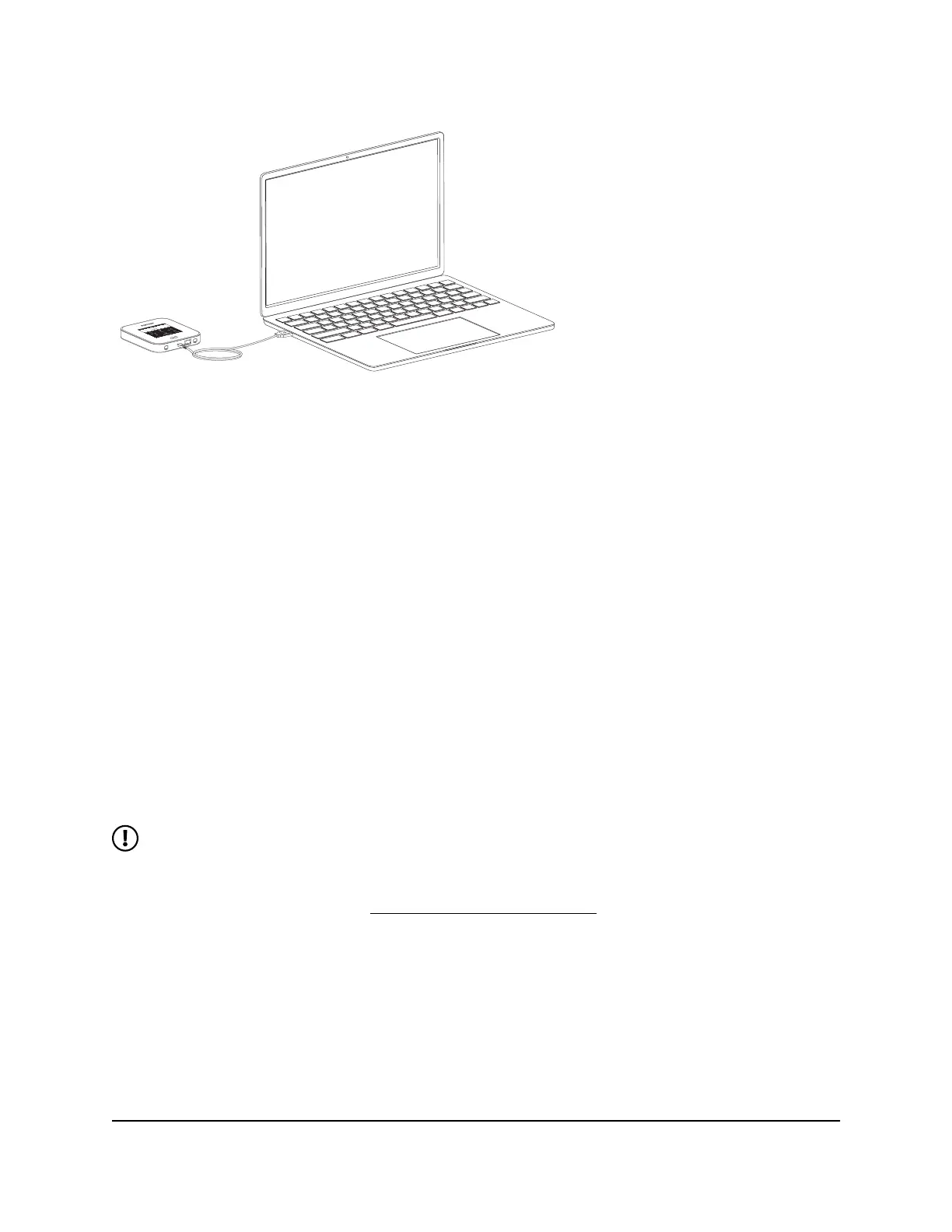
Figure 10. Nighthawk M7 laptop tethering
To connect a computer to the Internet using tethering:
1. If your mobile hotspot is powered on, press and hold the Power button for two
seconds, then select Shut down to power it off.
2. Connect your mobile hotspot to your computer using the included USB cable.
The mobile hotspot powers on and your computer detects the mobile hotspot.
Your computer connects to the Internet.
Connect a computer to the Internet
using Ethernet
You can connect a computer to your mobile hotspot using an Ethernet cable instead
of connecting with WiFi or tethering.
NOTE: The Ethernet port is disabled by default. You must enable the Ethernet
port from the home screen to connect using Ethernet, and the port will go to
sleep after two minutes if using battery power and not connected to a device.
For more information, see Enable or disable Ethernet on page 47.
To connect a computer to the Internet using Ethernet:
1. Quickly press and release the Power button to wake your mobile hotspot.
The lock screen displays.
2. Swipe up to unlock your mobile hotspot.
The home screen displays.
3. Using an Ethernet cable, connect your mobile hotspot to your computer.
User Manual22Connect devices to the Internet
Nighthawk M7 Ultra





 To Next Page