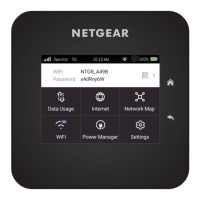
4. Tap Hide to mask your WiFi credentials on the Home screen, or tap Show to display
them.
The default setting is Show.
5. Tap Ok.
Your WiFi Info on Home setting is saved.
Change user interface language
Your mobile hotspot supports multiple user interface languages. You can change the
language your mobile hotspot uses.
NOTE: The languages that your mobile hotspot supports might vary depending
on what region you purchased your device in.
To change the user interface language:
1. Quickly press and release the Power button to wake your mobile hotspot.
The lock screen displays.
2. Swipe up to unlock your mobile hotspot.
The home screen displays.
3. Tap Settings > Screen > Default Language.
The Default Language page displays.
4. Tap a language for your mobile hotspot user interface to display.
5. Tap Ok.
Your mobile hotspot restarts and displays its user interface in the language that you
selected.
Manually check for software and
firmware updates
Your mobile hotspot will notify you when it detects the availability of new software or
firmware. However, you can also check for updates manually. Because software and
firmware updates typically improve device performance and usability, we recommend
that you update your hotspot whenever possible.
User Manual46Adjust network, security, and
performance settings
Nighthawk M7 Ultra





 To Next Page