The lock screen displays.
2. Swipe up to unlock your mobile hotspot.
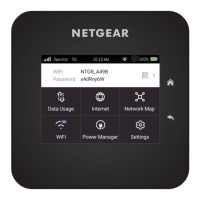
The home screen displays.
3. Tap Settings > Mobile > APN.
The APN page displays.
4. Tap the APN to use.
The selected APN is active.
Add a new APN
NOTE: Your carrier determines its own APN information and must provide you
the information for its own data plan. APN settings can also vary depending on
the type of plan that you subscribe to. We recommend that you contact your
carrier for the correct APN settings and only use the APN that your carrier instructs
you to use for your specific plan.
To add a new APN:
1. Quickly press and release the Power button to wake your mobile hotspot.
The lock screen displays.
2. Swipe up to unlock your mobile hotspot.
The home screen displays.
3. Tap Settings > Mobile > APN.
The APN page displays.
4. Tap + Add.
The Add APN page displays.
5. Specify the APN name.
The APN name is a label for display in the UI.
6. Specify the APN
This step specifies the APN as defined by the carrier.
7. Select the network authentication mode:
•
None
•
PAP
•
CHAP
•
PAPCHAP
8. Enter the name and password, if they are required for the network.
User Manual41Adjust network, security, and
performance settings
Nighthawk M7 Ultra





 To Next Page