NOTE: Updating your mobile hotspot temporarily interrupts your network
connection. Make sure that you are prepared to lose connectivity before starting
the update process.
To manually check for software and firmware updates:
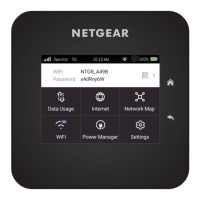
1. Quickly press and release the Power button to wake your mobile hotspot.
The lock screen displays.
2. Swipe up to unlock your mobile hotspot.
The home screen displays.
3. Tap Settings > Software.
The Software Update page displays.
4. Tap the Check for updates button.
The screen refreshes, showing any available update.
5. Do one of the following:
•
If an upgrade is available and you want to install it, tap the Update now button
to install the update.
•
To postpone the update, tap Postpone.
If you tap Update now, the update proceeds.
If you tap Postpone, a message displays indicating that the update will be postponed
for 4 hours. You can then click Apply to accept the postponed update.
When the wait period is complete, after you are prompted to continue the update,
tap Continue Update.
If the battery is low, a message displays indicating that the battery is low.
6. To continue, connect the device to the charger and click Apply.
After the update is complete, your mobile hotspot restarts.
Enable or disable Ethernet
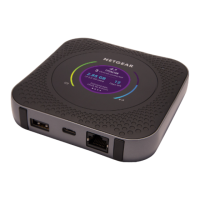
The Ethernet port is disabled by default. You can manually enable or disable your mobile
hotspot's Ethernet port from the home screen.
User Manual47Adjust network, security, and
performance settings
Nighthawk M7 Ultra





 To Next Page