Change screen timeout
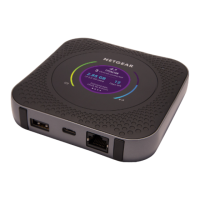
By default, your mobile hotspot disables its screen after a period of inactivity to increase
your battery life. Depending on how you use your mobile hotspot, you might want to
set a specific screen timeout period, or disable screen timeout so that the screen is
always active.
To change screen timeout:
1. Quickly press and release the Power button to wake your mobile hotspot.
The lock screen displays.
2. Swipe up to unlock your mobile hotspot.
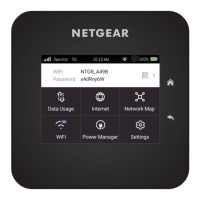
The home screen displays.
3. Tap Settings > Screen > Screen Timeout.
The Screen Timeout page displays.
4. Tap a screen timeout option.
The minimum setting is Never, and the maximum setting is 10 minutes.
5. Tap Ok.
Your screen timeout setting is saved.
Hide or show WiFi credentials on
the Home screen
By default, your mobile hotspot displays its WiFi network name (SSID) and password
on the Home screen for convenient reference when connecting your WiFi devices.
However, you might want to hide this information when using your mobile hotspot in
some public areas to prevent unauthorized access to your device.
To hide or show WiFi credentials on the Home screen:
1. Quickly press and release the Power button to wake your mobile hotspot.
The lock screen displays.
2. Swipe up to unlock your mobile hotspot.
The home screen displays.
3. Tap Settings > Screen > WiFi Info on Home.
The WiFi Info on Home page displays.
User Manual45Adjust network, security, and
performance settings
Nighthawk M7 Ultra





 To Next Page