Select a cellular band
Your mobile hotspot has both 4G and 5G cellular band connectivity. By default, your
mobile hotspot connects to the fastest available band. However, you can limit connectivity
to the 4G band if you prefer.
To select a cellular band:
1. Quickly press and release the Power button to wake your mobile hotspot.
The lock screen displays.
2. Swipe up to unlock your mobile hotspot.
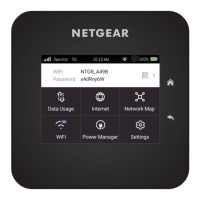
The home screen displays.
3. Tap Settings > Mobile > Band Region.
The Band Region page displays.
4. Select a band option:
•
4G + 5G: Your mobile hotspot connects to the best available band, whether 4G
or 5G.
•
4G: Your mobile hotspot only connects to the 4G band.
5. Tap Ok.
Your band setting is saved.
Adjust screen brightness
You can adjust how bright your mobile hotspot's screen is. A brighter setting might
make the display easier to see in bright environments, but uses more of the device's
battery power.
To adjust screen brightness:
1. Quickly press and release the Power button to wake your mobile hotspot.
The lock screen displays.
2. Swipe up to unlock your mobile hotspot.
The home screen displays.
3. Tap Settings > Screen > Screen Brightness.
The Screen Brightness page displays.
4. Use the slider to adjust the screen brightness to your desired setting.
User Manual44Adjust network, security, and
performance settings
Nighthawk M7 Ultra





 To Next Page