8. To prevent the route from becoming active, clear the Active check box.
In some situations, you might want to set up a static route but keep it disabled until
a later time. By default, the Active check box is selected and a route becomes active
after you click the Apply button.
9. Enter the following settings:
•
Destination IP Address: Enter the IP address for the final destination of the route.
•
IP Subnet Mask: Enter the IP subnet mask for the final destination of the route.
If the destination is a single host, enter 255.255.255.255.
•
Gateway IP Address: Enter the IP address of the gateway for routing the traffic
to the final destination or host.
The IP address of the gateway must be on the same LAN segment as the router.
•
Metric: Enter a number from 2 through 15.
This value represents the number of routers between your network and the
destination. Usually, a setting of 2 or 3 works.
10. Click the Apply button.
Your settings are saved. The static route is added to the table on the Static Routes
page.
Edit a static route
To edit a static route:
1. Launch a web browser from a computer or mobile device that is connected to the
router network.
2. Enter http://www.routerlogin.net.
A login window displays.
3. Enter the router admin user name and password.
The user name is admin. The password is the one that you specified when you set
up your router. The user name and password are case-sensitive.
The BASIC Home page displays.
4. Select ADVANCED > Advanced Setup > Static Routes.
The Static Routes page displays.
5. In the table, select the radio button for the route.
6. Click the Edit button.
Static route configuration options display.
User Manual98Manage the WAN and LAN
Network Settings
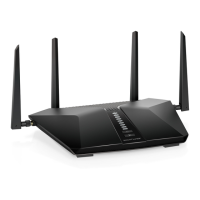
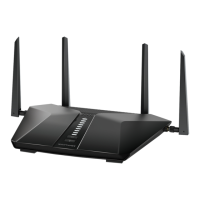
4-Stream AX1800 WiFi 6 Router Model RAX9 and Model R6600AX







 To Next Page