EasyManua.ls Logo

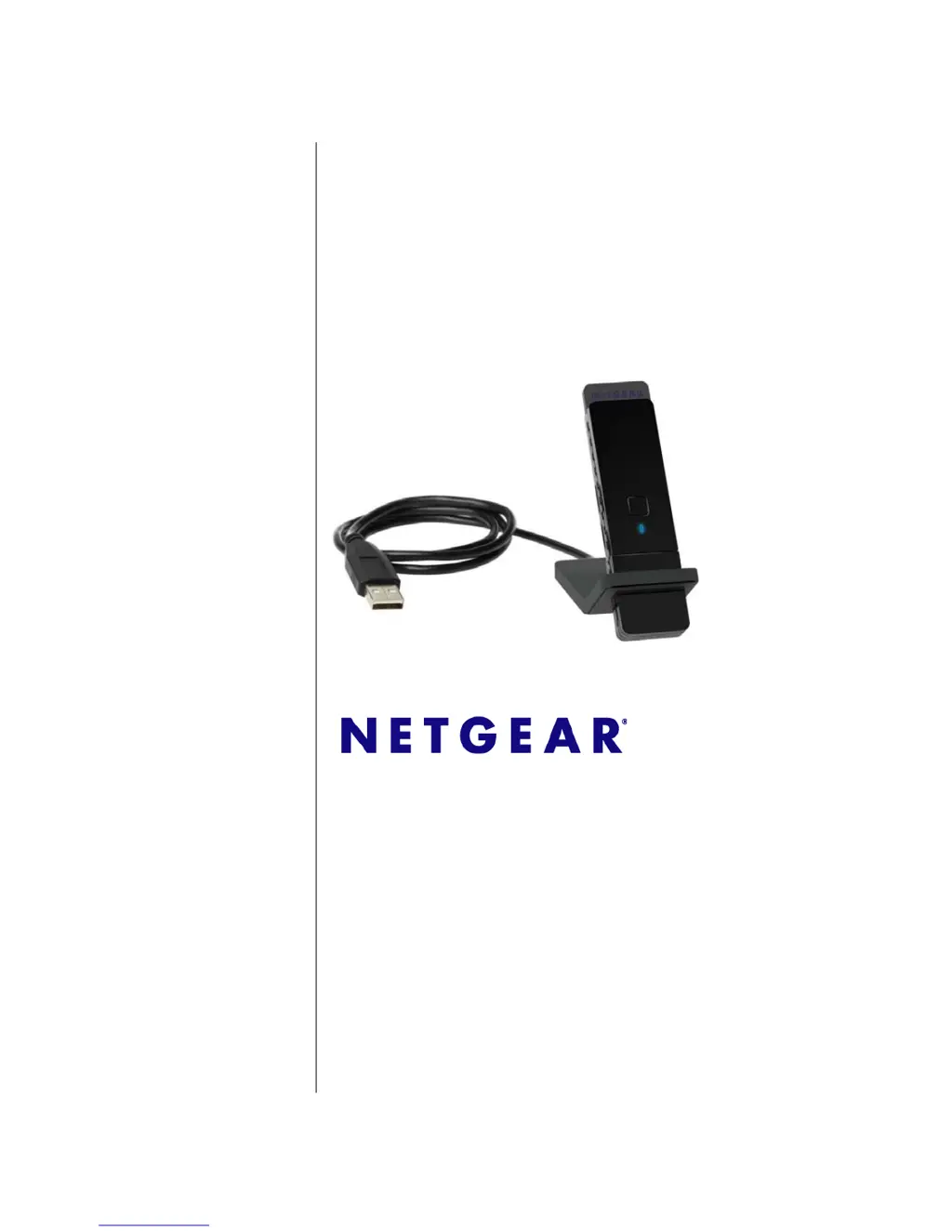
NETGEAR WNA3100 - Wireless-N 300 USB Adapter - User Manual

NETGEAR WNA3100 - Wireless-N 300 USB Adapter
48 pages
Print Icon
To Next Page IconTo Next Page
Loading...
202-10539-01
December 2009
NETGEAR, Inc.
350 E. Plumeria Drive
San Jose, CA 95134 USA
Wireless-N 300 USB
Adapter WNA3100 User
Manual

Table of Contents

Other manuals for NETGEAR WNA3100 - Wireless-N 300 USB Adapter

Questions and Answers

  • A
    Aaron RodriguezAug 14, 2025
    What to do if I cannot connect to a wireless network with NETGEAR WNA3100 - Wireless-N 300 USB, even with good signal strength?
    • S
      shawn24Aug 14, 2025
      If you cannot connect to a wireless network with your NETGEAR Adapter despite good signal strength, check if you are still connected to the previous network. If the network uses Push 'N' Connect, ensure you select the right network and go to the correct router when prompted to push its WPS button. If you're typing a passphrase, key, or SSID for a hidden network, ensure it matches the wireless network settings exactly.
  • C
    Caroline BarronAug 17, 2025
    What to do if my NETGEAR WNA3100 - Wireless-N 300 USB Adapter connection seems slow?
    • B
      Brianna RuizAug 17, 2025
      If your NETGEAR Adapter connection seems slow, check the status bar to see if the data rate is 54 Mbps or 14 Mbps. If you don't have a USB 2.0 port on your computer, the throughput is limited to the 14 Mbps of the USB 1.1 standard.
  • M
    Marissa DaltonAug 20, 2025
    What to do if my NETGEAR WNA3100 - Wireless-N 300 USB Adapter connection status shows 169.254.x.x?
    • F
      Felicia PhillipsAug 20, 2025
      If your NETGEAR Adapter connection status shows 169.254.x.x, it means your computer couldn't reach a DHCP server and assigned itself an IP address. Here's what you can do: * Open the Smart Wizard and click 'Apply' at the bottom of the Settings tab. * Use the Repair function in Windows to try to get an IP address. * Reboot your computer. * Check the router’s DHCP settings.
  • M
    maliksmithAug 25, 2025
    Why I can connect to the wireless network, but not to the other computers on the network or to the Internet with NETGEAR WNA3100 - Wireless-N 300 USB?
    • J
      joshualewisAug 25, 2025
      If you can connect to the wireless network but not to other computers or the Internet, it could be a physical layer or network configuration issue. First, check that the router is physically connected to the Ethernet network. Also, ensure that the IP addresses and Windows networking are configured correctly. Finally, try restarting the modem, router, and computer.
  • D
    Darrell ChavezAug 27, 2025
    What to do if NETGEAR Adapter LED is not lit?
    • D
      Daniel LozanoAug 27, 2025
      If the LED on your NETGEAR Adapter is not lit, it could mean the adapter isn't connected correctly or the software isn't installed. Try removing and reinserting the adapter. Check the Windows device manager to see if the adapter is recognized and enabled. If necessary, reinstall the software. Also, try inserting the adapter into a different USB slot on your computer, if available.
  • K
    Kathleen ChavezAug 31, 2025
    What to do if NETGEAR WNA3100 - Wireless-N 300 USB Adapter LED blinks, but the adapter is not connected to a wireless network?
    • J
      Jeffrey LevyAug 31, 2025
      If the LED on your NETGEAR Adapter blinks but it's not connected to a wireless network, the adapter is likely trying to connect unsuccessfully. Ensure that the router is powered on. Also, verify that the router and the adapter are configured with the same wireless settings.
  • S
    sullivanashleySep 3, 2025
    What to do if NETGEAR WNA3100 - Wireless-N 300 USB connection status shows ---.---.-.-?
    • J
      Jordan LuceroSep 3, 2025
      If your NETGEAR Adapter connection status shows ---.---.-.-, it may be because you upgraded your software and didn't reboot your system. Either restart your computer, or connect to a different wireless network.
  • N
    nelsondarylSep 6, 2025
    Why does the Smart Wizard keep asking me to save my settings on NETGEAR WNA3100 - Wireless-N 300 USB Adapter?
    • G
      Gregory RomeroSep 6, 2025
      To avoid the prompt to save settings in the Smart Wizard, simply click Apply before you close the Smart Wizard.
  • J
    josegordonSep 10, 2025
    What to do if Push 'N' Connect timed out when I tried to connect to a router with NETGEAR WNA3100 - Wireless-N 300 USB Adapter?
    • E
      escobarandreSep 10, 2025
      If Push 'N' Connect timed out when connecting to a router with your NETGEAR Adapter, make sure that your router supports WPS. If there is more than one WPS network in your area, make sure you selected the correct wireless network.

Summary

Safety and Regulatory Notices

FCC Statement

Describes FCC compliance for Class B digital devices and operation conditions.

FCC RF Radiation Exposure and SAR Statements

Details SAR compliance and RF exposure information according to FCC guidelines.

Canadian Department of Communications Industry Canada (IC) Notice

States compliance of the digital apparatus with Canadian ICES-003 and RSS-210 standards.

Industry Canada Statement

Outlines the conditions for compliance with Industry Canada rules and RF exposure.

Europe - EU Declaration of Conformity

Provides a link to the NETGEAR EU Declarations of Conformity website.

About This Manual

Conventions, Formats, and Scope

Explains typographical conventions, message formats, and the manual's scope for the wireless adapter.

Revision History

Chapter 1 Installation with Custom Setup

What You Need Before You Begin

Lists prerequisites for installing the wireless-N USB adapter, including PC specs and OS.

Observe Wireless Location and Range Guidelines

Provides advice on optimal placement of the wireless-N USB adapter for best performance.

First, Install the WNA3100 Software

Guides users through the initial steps of installing the WNA3100 software from the CD.

Then, Install Your WNA3100 v1 Adapter

Instructs users to insert the wireless USB adapter into their computer after software installation.

Use Smart Wizard Automatic Configuration to Connect to a Wireless Network

Guides users on how to connect to a wireless network using the Smart Wizard's automatic configuration.

Monitoring Wireless Network and the Internet Connections

Explains how to check connection status using the WNA3100 v1 icon, status bar, and adapter LED.

WNA3100 v1 Icon

Describes the meaning of different colors of the WNA3100 v1 icon on the desktop and system tray.

Smart Wizard Status Bar

Explains how to interpret the status bar within the Smart Wizard for connection details.

Wireless-N USB Adapter LED

Details the meaning of the LED indicator on the wireless-N USB adapter.

Removing the WNA3100 v1 Software

Provides step-by-step instructions for uninstalling the WNA3100 v1 software.

Upgrading the WNA3100 v1 Software

Guides users on how to check for and install software or firmware upgrades from the NETGEAR website.

Chapter 2 Network Connections and Wireless Security

Viewing Wireless Networks in Your Area

Explains how to use the Networks tab in Smart Wizard to view available wireless networks.

Joining a Network

Details how to use the "Join a Network" button to view and connect to available wireless networks.

Using Push N Connect to Join a Network

Guides users on connecting to a WPS-enabled network using the Push 'N' Connect feature.

Creating a Profile to Connect to a Wireless Network

Explains how to create and save network profiles using the Smart Wizard's Settings tab.

Managing Profiles

Describes how to create, save, and manage wireless network profiles in the Settings tab.

Setting Up a Computer-to-Computer (Ad Hoc) Profile

Explains how to set up an Ad Hoc mode profile for direct computer-to-computer wireless communication.

Starting a Computer-to-Computer (Ad Hoc) Network Connection

Details the steps to initiate and start an Ad Hoc network connection.

About Wireless Security

Discusses wireless security encryption methods like WPA-PSK and WEP.

Wireless Network Name (SSID) and Security Settings

Explains how to configure SSID and security settings for a secured wireless network.

Setting Up WPA-PSK [TKIP] or WPA2-PSK [AES] Security

Provides instructions for setting up WPA-PSK (TKIP) or WPA2-PSK (AES) security.

Setting Up WEP Encryption Security

Guides users on configuring WEP encryption security for their wireless network.

Monitoring Statistics

Explains how to view real-time and historical data traffic and performance statistics for the wireless adapter.

About Your Smart Wizard

Displays current version information for the Smart Wizard and adapter.

Advanced Settings

Allows configuration of advanced wireless settings like preamble, transmit rate, and thresholds.

Chapter 3 Wireless Network Performance

Optimizing Wireless Performance

Provides tips to optimize wireless router performance by considering placement and avoiding interference.

Optimizing Your Network Bandwidth

Discusses factors affecting network connection speed and how to choose high-speed technologies.

Small Office and Home Office (SOHO) Networking Technologies

Covers common connection types like Broadband Internet, Wireless, Powerline, and Wired Ethernet.

Assessing Your Network Speed Requirements

Helps users understand data rate requirements for applications like HD video streaming and MP3 audio.

Chapter 4 Troubleshooting

Troubleshooting Tips

Offers solutions to common issues like Push 'N' Connect timeouts, repeated save prompts, and slow connections.

Troubleshooting with the LED

Provides a table to diagnose issues based on the wireless-N USB adapter's LED status.

Occasional Windows XP Connection Problems

Addresses potential connection issues for Windows XP users related to specific hotfixes.

Ad Hoc Mode Is Not Working Correctly

Offers troubleshooting steps for issues when Ad Hoc mode is not functioning as expected.

Appendix A Technical Specifications and Factory Default Settings

Technical Specifications

Lists detailed technical specifications of the wireless-N 300 USB Adapter.

Factory Default Settings

Outlines the default configuration settings for the Smart Wizard and wireless adapter.

Appendix B Related Documents

Using Microsoft Vista and Windows XP to Manage Wireless Network Connections

Provides guidance on managing wireless connections in Microsoft Vista and Windows XP.

TCP;IP Networking

Offers information on TCP/IP networking concepts relevant to the adapter.

Wireless Networking Basics

Explains fundamental concepts of wireless networking.

Preparing Your Network

Guides users on preparing their network for the wireless adapter.

Virtual Private Networking Basics

Covers the basics of Virtual Private Networking (VPN) in relation to the product.

Glossary

Provides definitions for terms used in the manual.

NETGEAR WNA3100 - Wireless-N 300 USB Adapter Specifications

General IconGeneral
InterfaceUSB 2.0
Frequency Band2.4 GHz
Data Transfer RateUp to 300 Mbps
SecurityWEP, WPA, WPA2
StandardsIEEE 802.11b/g/n
AntennaInternal
Operating Systems SupportedWindows XP, Vista, 7
Wireless Type802.11b/g/n

Related product manuals