EasyManua.ls Logo

NETGEAR XAV5601 - User Manual

NETGEAR XAV5601
26 pages
Print Icon
To Next Page IconTo Next Page
Loading...
350 East Plumeria Drive
San Jose, CA 95134
USA
July 2011
202-10872-01
v1.0
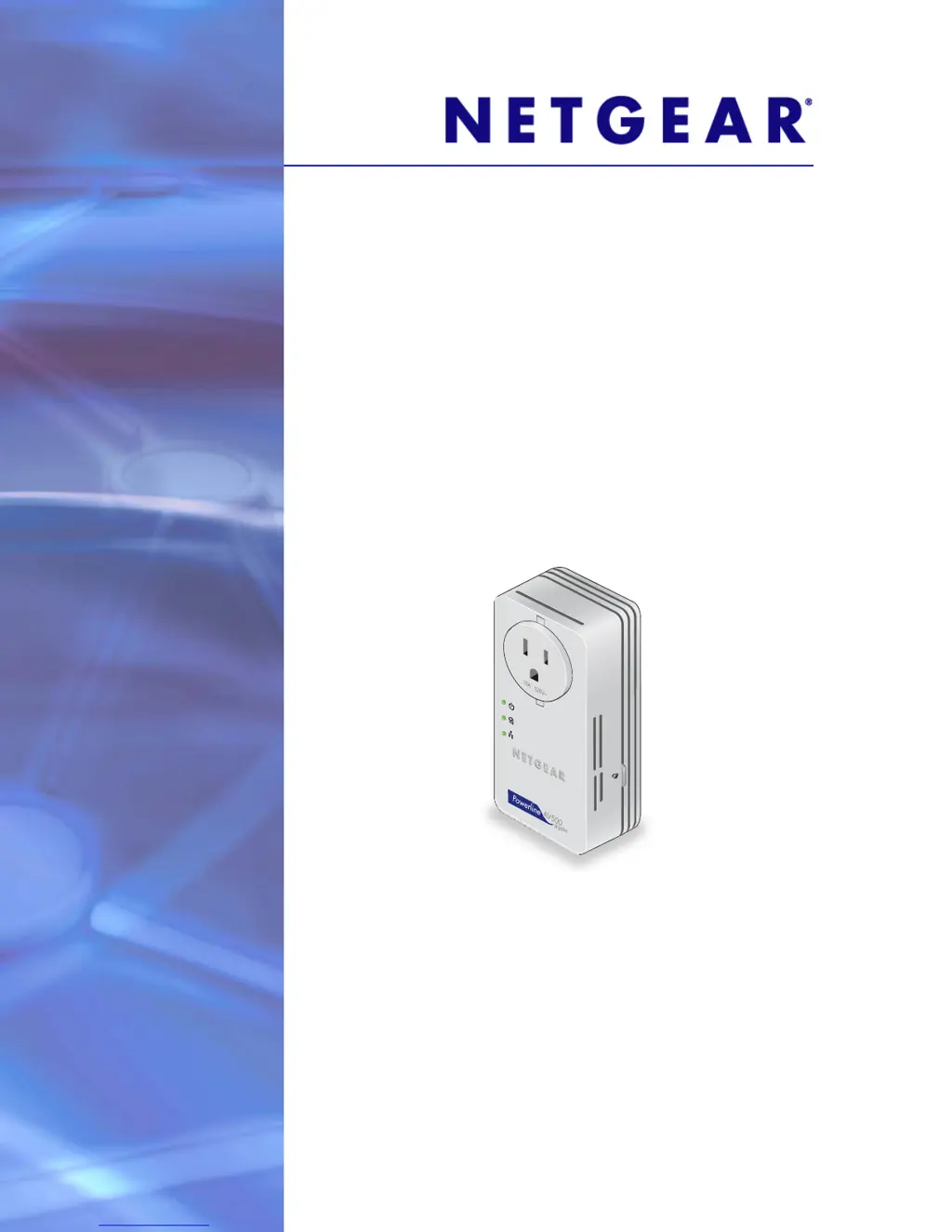
Powerline AV+ 500 Nano
XAV5601
User Manual

Other manuals for NETGEAR XAV5601

Questions and Answers

  • J
    Jessica PerezAug 9, 2025
    What to do if NETGEAR Adapter Powerline LED is off?
    • P
      pamela98Aug 9, 2025
      If the NETGEAR Adapter's Powerline LED is off, ensure that the Powerline devices are plugged into outlets with power and that they use the same network encryption key. Try moving the Powerline device to a location closer to the computer or devices. If you have set up network security, verify that all Powerline devices are using the same encryption key. If the problem occurred after you changed the network encryption key, reset each device to its factory default settings and then customize the encryption key.
  • T
    timothy95Aug 13, 2025
    Why is the NETGEAR Adapter power LED off?
    • E
      Eric MayoAug 13, 2025
      If the NETGEAR Adapter's power LED is off, ensure that power is supplied to the electrical outlet and that the Powerline devices are not plugged into an extension cord, power strip, or surge protector.
  • N
    Nicholas PhillipsAug 18, 2025
    How to fix NETGEAR XAV5601 when LEDs are off after plugging in?
    • S
      Sarah RuizAug 18, 2025
      If the LEDs are off when the NETGEAR Adapter is plugged in, first ensure the electrical outlet has power. If power is supplied and the LEDs remain off, the LEDs might have been turned off using the Powerline Utility. Use the Powerline Utility to check if this is the case and turn them back on if needed.
  • E
    Eugene HoffmanAug 23, 2025
    What to do if NETGEAR Adapter devices are not showing in Powerline Utility?
    • A
      Alyssa NunezAug 23, 2025
      If you do not see all your devices with the NETGEAR Powerline Utility, it might be because the device is in power saving mode. Keeping an Ethernet cable plugged into the device will keep it active, preventing it from entering power saving mode. Another reason might be different encryption keys. Reset your Powerline adapters to their factory settings and default encryption key, then set the encryption for all of your Powerline adapters. Alternatively, connect your computer to each Powerline device and set up the network encryption key for one adapter at a time.
  • A
    Alyssa WatsonAug 28, 2025
    Why is my NETGEAR XAV5601 Adapter Ethernet LED not blinking?
    • D
      Donna JohnsonAug 28, 2025
      If the NETGEAR Adapter's Ethernet LED does not blink, ensure that your router and modem are switched on. Also, check that the adapter’s cable is securely connected to a router LAN port and that a PC connected directly to the router can access the Internet. If these steps don't work, press the Reset button on each Powerline device for 1 second to return the Powerline adapter to its factory default settings.
  • L
    Lisa OwenSep 2, 2025
    Why is the NETGEAR Adapter power LED amber?
    • X
      xgentrySep 2, 2025
      If the NETGEAR Adapter's power LED is amber and the Ethernet LED is off, the adapter should return to normal mode within 2 seconds once the Ethernet link is up. The amber light could also mean the Ethernet cable is unplugged, the device connected through the Ethernet cable is turned off, or the adapter is idle for 10 minutes.

Summary

Chapter 1 Getting Started

Hardware Features

Describes the physical components and appearance of the Powerline adapter.

LEDS

Explains the status indicators (LEDs) on the Powerline adapter and their meanings.

Powerline Adapter in a Home Network

Illustrates how to set up a Powerline network within a home using the adapters.

Chapter 2 Powerline Utility

Install the Powerline Utility

Guides users through the process of downloading and installing the NETGEAR Powerline Utility software.

Powerline Utility Screen

Explains the main interface of the Powerline Utility and how to navigate it.

Set the Powerline Encryption Key

Details how to set and manage network encryption keys for Powerline devices using the utility.

Set Up Quality of Service (QoS)

Explains how to prioritize network traffic types using the Quality of Service feature.

Chapter 3 Troubleshooting

NETGEAR XAV5601 Specifications

General IconGeneral
Data and routing protocolsIEEE 802.3 (10BASE-T), IEEE 802.3u (100BASE-Tx) IEEE 802.3ab (1000BaseTx)
Security encryption type128-bit AES
MAC addresses64: number of nodes that can be added to a single network
Frequency band:2 –80Mbps
Modulation type:OFDM symbol modulation
AC input100–125V~, 0.2A max in North America and 200–250V~, 0.2A max in other regions
Power consumptionNormal: 4.5W, Power saving mode: <0.5W
Operating temperature0 to 40 C (32º to 104º F)
Operating humidity10–90% maximum relative humidity, noncondensing
Storage humidity5–95% maximum relative humidity, noncondensing
Electromagnetic emissions:FCC Part 15 Class B; CE-EMC Class B; 3-home FCC Certificate
Safety agency approvals:UL Listed (UL 60950-1:2nd Ed.) /cUL (CSA C22.2 No.60950-1-07 2nd Ed.); CE LVD; TUV CB, TUV GS
Bandwidth5 00Mbps
Data transfer rateU p to 200M bps with real throughput greater than 80Mbps
CompatibilityNot HomePlug v1.0 or HomePlug v1.0 Turbo compatible
Weight and Dimensions IconWeight and Dimensions
Dimensions114 x 55 x 32.5 mm (4.5 x 2.2 x 1.28 in.)
Weight0.174 kg (0.38 lb)

Related product manuals