Page 22
Making a store
Access to Recall can be via a Recall icon on the desktop or dock, dependent on the
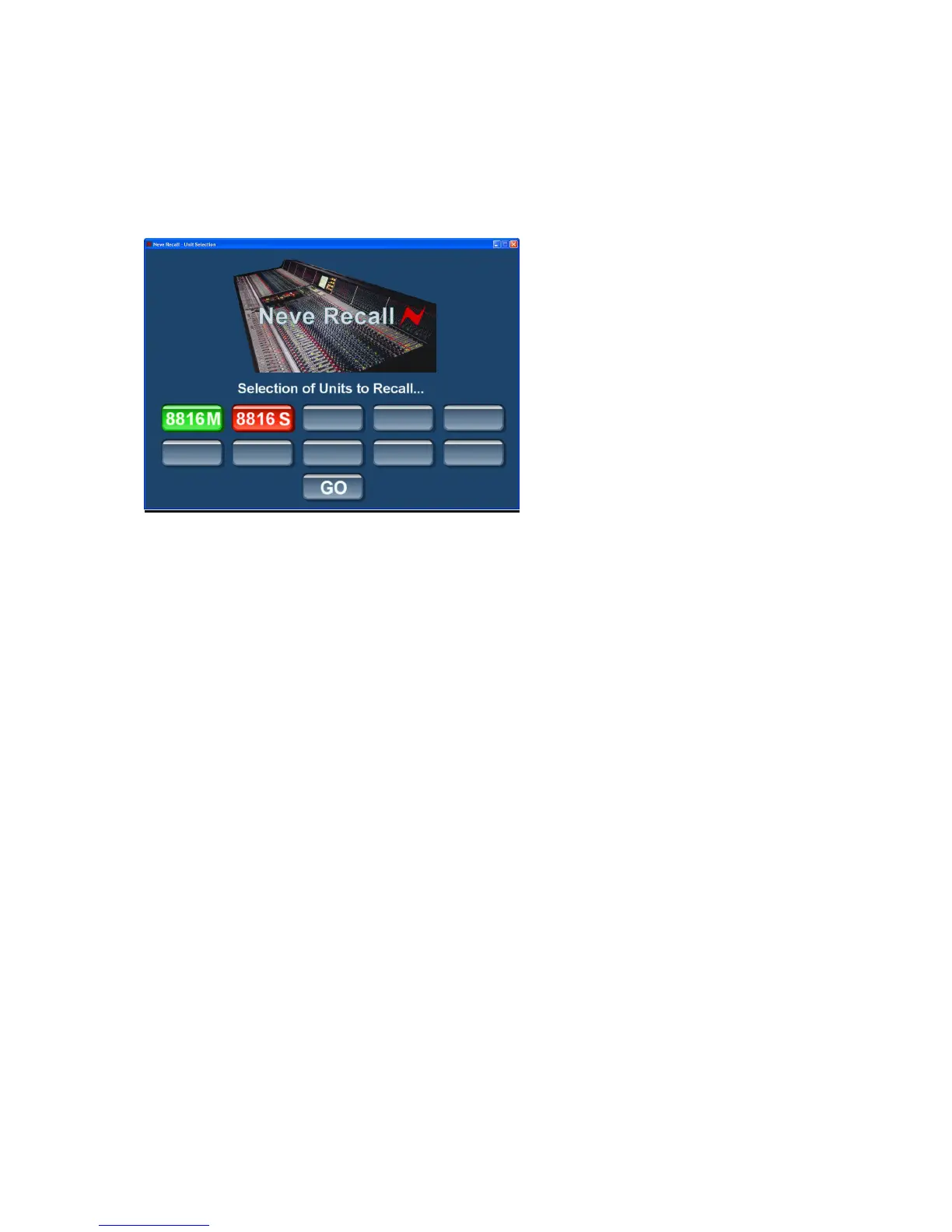
user’s personal preferences. Clicking on this will take you into the Unit Select screen
shown above, here a unit or units can be selected to be part of a store. The Recall
system will automatically display any units present in green with the type of unit and
its slave/master settings if applicable. At this point it is possible to deselect units you
do not want to form part of the Store by clicking on the units not required. This will be
indicated by the button turning red. Clicking on the unit again will return it to green
status ready to form part of the Recall Store.
If you decide not to continue with the Recall you can either click on the close box or
select the "close Recall" from the task bar which will exit the Recall programme.
When satisfied with the selection, clicking on GO will take you to the Recall Store /
Load screen.
Once In the Store / Load screen, it is probably worth noting the difference between
Create Store and Save Store.


 To Next Page