- Step 3: Test the Connection
USB-Link™ 2 Wi-Fi Edition Installation and Setup Manual 31
If the Connection Indicator button is red (i.e., Not Connected), do one of the
following:
—For wireless connection using Wi-Fi:
•In the Devi
ce list, make sure that the heading is USB-Link 2 WiFi
(Protocol desired).
• Check to ensure that the connections between the USB-Link™
and
the vehicle are secure (i.e., the Diagnostic Connector).
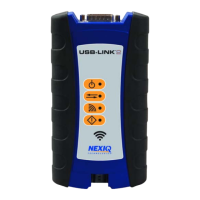
• Check to make certain that the Power LED on the USB-Link™ is
illuminated.
—For wired connection using a USB cable:
• In the Device list
, m
ake sure that the heading is USB-Link2 (Pro-
tocol desired).
• Check to ensure that the connections between the USB-Link™ 2
and the P
C are secure (i.e., the USB cable).
• Check the connections between the USB-Link™ 2 and the vehi-
cle (i.e., the Diagnostic Connector).
• Check to make certain that the Power LED on the USB-Link™ 2
is illuminated.
i For additional information, refer to “Connect the USB-Link™ to a Vehicle”
on page 24 of this manual.
5 Click S
top Test to end the test, or select another device to test.


 To Next Page