15
v.12/2020
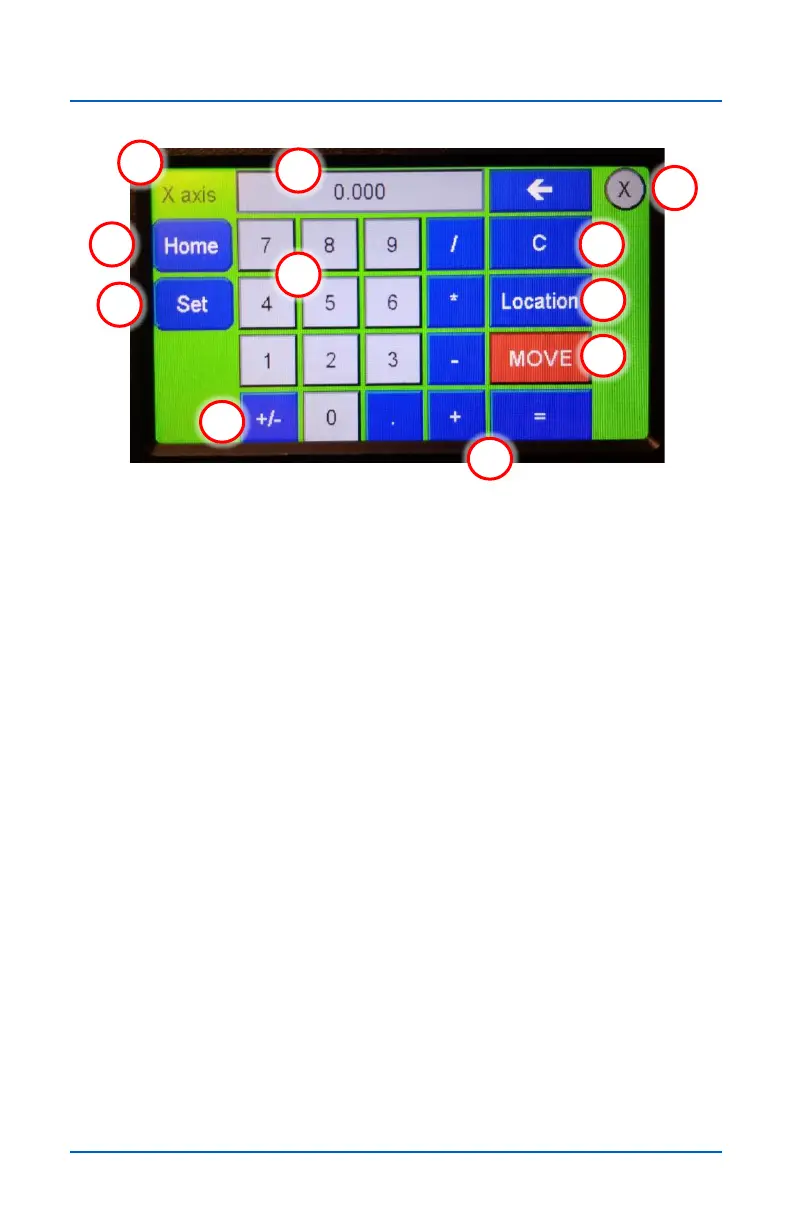
X and Y Axis Edit screen
1
2
8
9
3
4
5
6
7
10
11
1. Active Axis – The label in upper left corner shows the axis
that is currently open for editing.
2. Position field – This field shows the current or edited
position of the axis. The field can be edited using the
keypad.
3. Exit screen– Press the X symbol in the upper right to exit
the edit screen and return to the main control screen.
4. Home – Pressing this button to move the axis to its current
zero position.
5. Set – After entering a new location in the position field,
press this button to apply (set) the new location. The
position also changes on the Main Control Screen.
6. Number keypad – Use these keys to enter a new location
in the position field.
7. C – Press to delete the information in the position field.
8. Location – Pressing this key to enter the current axis
location into the position field
9. MOVE – Press this button to move axis to the location
currently showing in the position field.
10. +/- button – Toggles the position field between a positive
and negative value.
11. Function keys – Similar to those on a typical math
calculator.


 To Next Page