17
PROGRAMMING
C-6 Controller Setup Menu
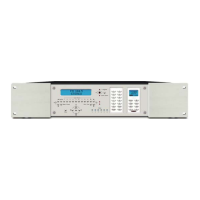
All system programming is done in the C-6 Controller using the C-6 Controller Setup Menu. No
PC, no software. Other than ‘Group’ and zone treble, mid and bass adjustments, once the
Controller has been programmed, the entire system is ready to go. If the system starts out in a
six-zone configuration using a single C-6 Controller and the homeowner decides to add zones at
a later date, other than adding zone names and setting the zone tone controls, all programming
will already be done!
The Controller Setup Memory is non-volatile so even if the power goes out, the system should not
need reprogramming.
The system setup should always be done prior to taking the system components to the job site.
This will assure that all components are functioning properly. Setting the system up in the shop
will also serve well to prevent overlooking the need for certain parts, pieces, connectors, emitters
etc. This will save time at the job site and help portray an image of professionalism to the client.
Tuner
There are ten Tuner preset memory locations. They can be any combination of AM and FM
stations. The stored band and frequency presets will appear on the Keypad LCDs when Tuner is
selected. To store Tuner Presets:
1. Select TUNER PRESET 1.
2. Press the AM·FM button to select band.
3. Press the MONO·STEREO button to select mode on the Controller Display.
4. Press the SEEK·TUNE button to select TUNE mode on the Controller Display.
5. Use the TUNE UP/DOWN buttons to select tuner frequency e.g. FM 94.7.
6. Press and hold TUNER PRESET 1 for 3 seconds or until P1 appears in the upper left corner of
the Controller Display.
7. Repeat steps 1-6 for Tuner Presets 2-10.
Source Naming
The C-6 provides a simple yet unlimited method of identifying the system source components.
The Tuner input is pre-programmed at the factory. Inputs 1-5 will default to: INPUT 1, INPUT 2
etc until the sources have been named in the Setup Menu. Inputs 1-5 have 40 pre-programmed
source name options such as: CD, DVD, SAT, SKIP, XMRADIO, etc. If you name a source SKIP
that input will be ignored and will sequence to the next input. If a particular source name is not
included in the pre-programmed options, new names can be added. The stored source names
will appear on the Keypad Displays as the inputs are selected from the Keypads or Remote. To
store Source Names:
1. Press MENU to enter the Setup Menu. SOURCE NAMING will appear on the Controller
Display. If the menu cursor (►) appears to the left of Source Naming, Press ENTER. The
Display will change to the Source Naming Window. If ► does not appear next to Source
Naming, use the ▲ button on the Navigation Array to scroll through the menu options to Source
Naming. When ► appears to the left of Source Naming, Press ENTER. The Display will change
to the Source Naming Window.
2. Since Tuner is already set as a system default, with the Programming Brackets [] under INPUT,
[Tun], PRESS ▲ on the Navigation Array. INPUT will change to: [1]. This indicates Input 1 is
ready to be named.
3. Press ► on the Navigation Array. The Programming Brackets [] will move to the PRESET
position.
4. Press ▲ and ▼ on the Navigation Array to scroll through the pre-programmed Source Names.


 To Next Page
 Loading...