43
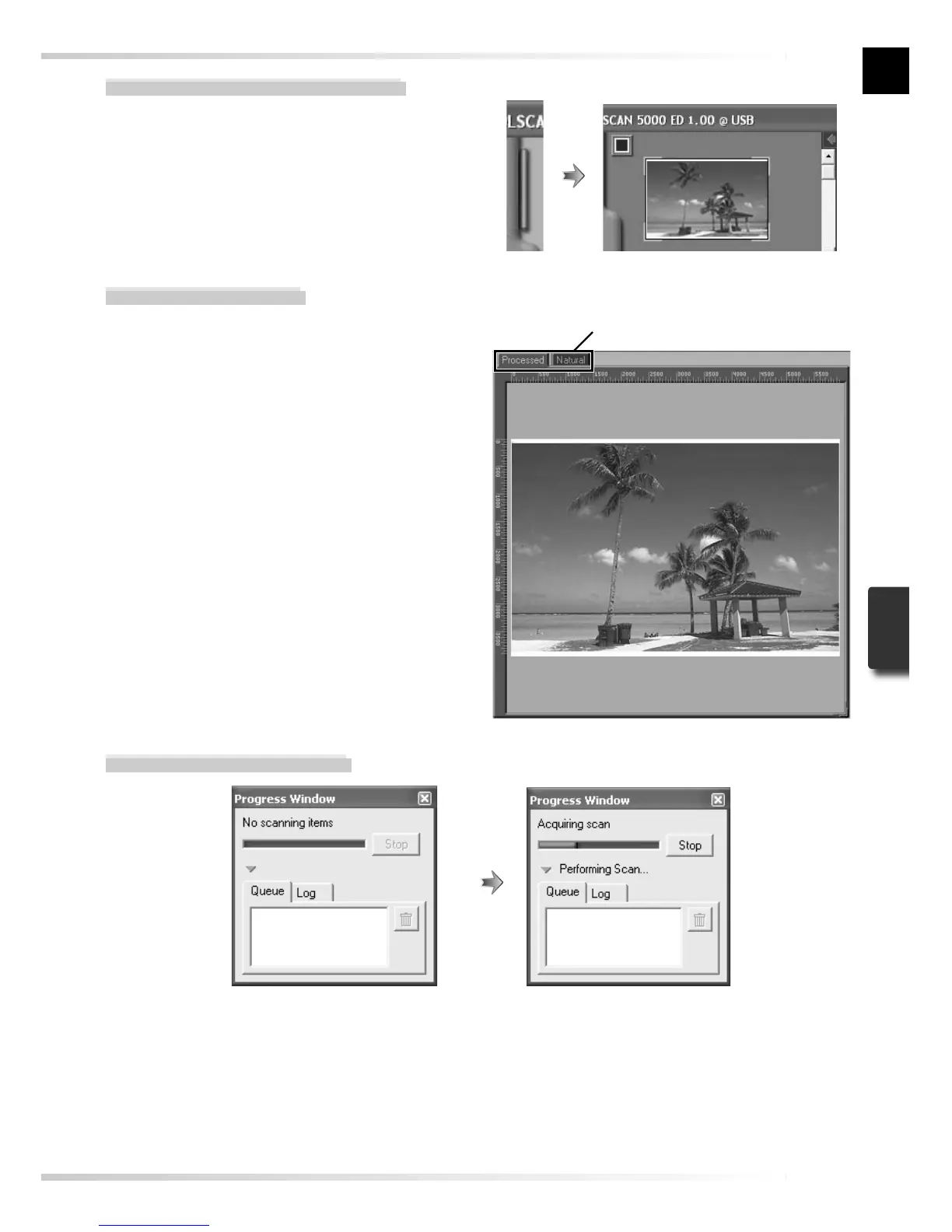
The Thumbnail Drawer Tab
Click this tab to open the thumbnail drawer.
If multiple frames are selected, the selected
images can be scanned in a single batch. This
is called a “batch scan.”
The Progress Window
The progress of preview and scan operations is shown in this window. The current task (ac-
quiring thumbnails, preview, or scanning) is shown at the top of the window. Tasks that have
yet to be performed are listed in the “Queue” panel, completed tasks in the “Log” panel. To
stop the current task, click Stop.
The Preview Area
Selected frames are previewed in this area.
Click the “Natural” and “Processed” tabs
for a quick “before-and-after” comparison
showing the effect of changes to settings in
the Tool Chest. The “Natural” panel shows
the image before processing, the “Pro-
cessed” panel the image as it would appear
when scanned at current settings.
Natural/Processed tabs






 To Next Page