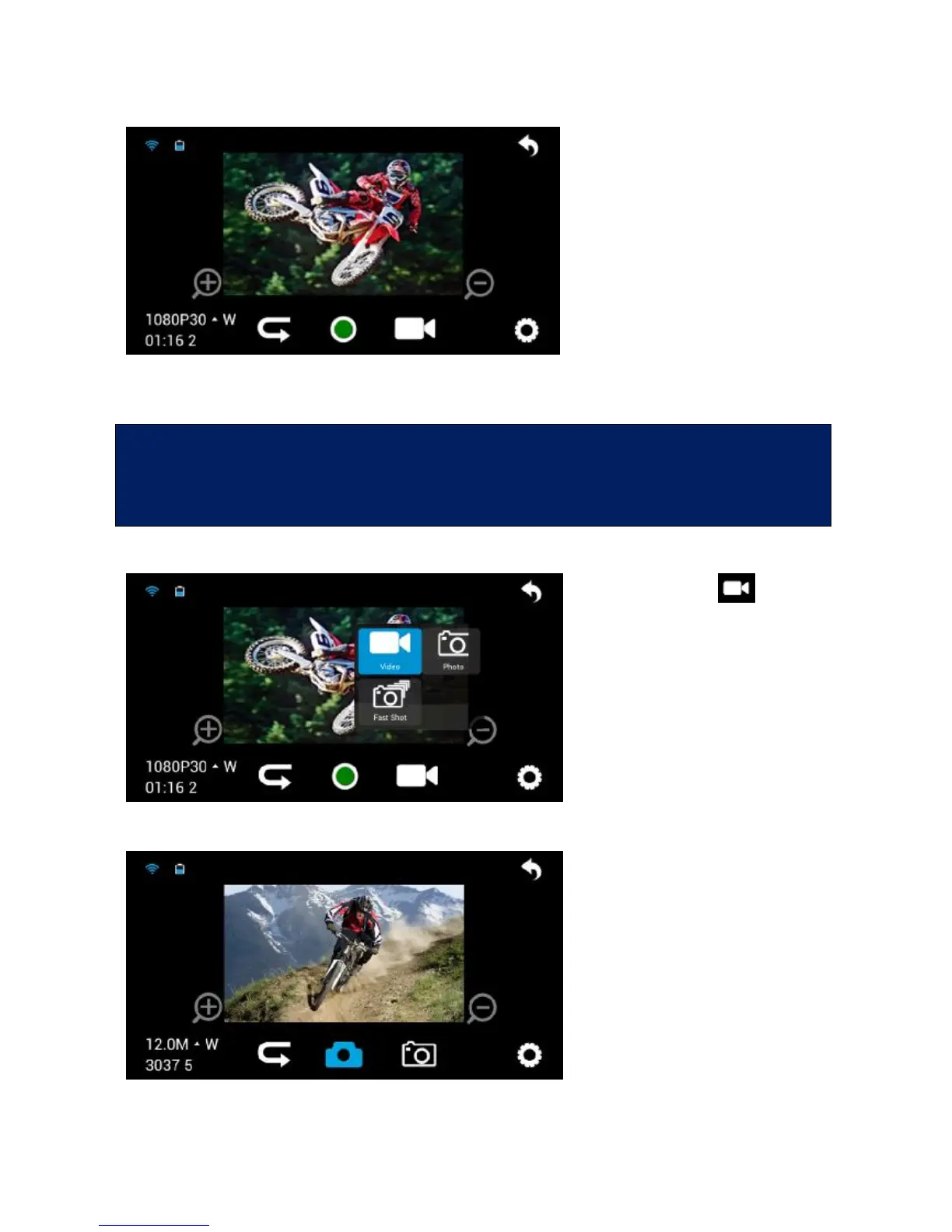
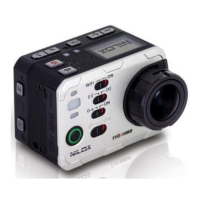
To start recording, press the
central green key.
Icon meanings are highly self-
explanatory, starting from the
top left in clockwise order:
1) Wi-Fi on
2) Battery level
3) Exit screen
4) Settings
5) Video mode on
6) Recording
7) Switch to view mode
8) Set video settings
The mobile device must be used within max. 100 metres from the video
camera and without obstacles.
Real-time preview is not available for 4K, 1080P 48fps/50fps/60fps and 720P
100fps/120fps video recording.
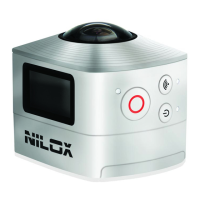
Photo
Touch the icon to switch
from video mode to photo
mode and select between single
photo and burst mode.
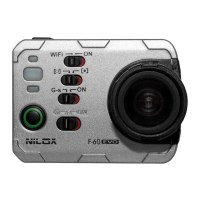
In this case too, the icons are
highly self-explanatory and
similar to those already seen
for videos.
Settings


 To Next Page