18
Connect NIOX MINO
®
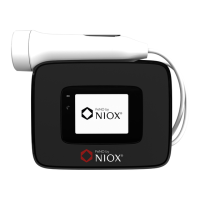
to a PC
using USB
Caution!
• APCconnectedtotheUSBconnector
hastobecertiedforoneofthe
standardsIEC60601-1,IEC61010-1,
IEC60950orcomparablewithsafety
extralowvoltageontheUSBports.
• TheconnectedPCshouldbeplaced
outofreachfromthepatient.Donot,
simultaneously,touchtheconnectedPC
andthepatient.
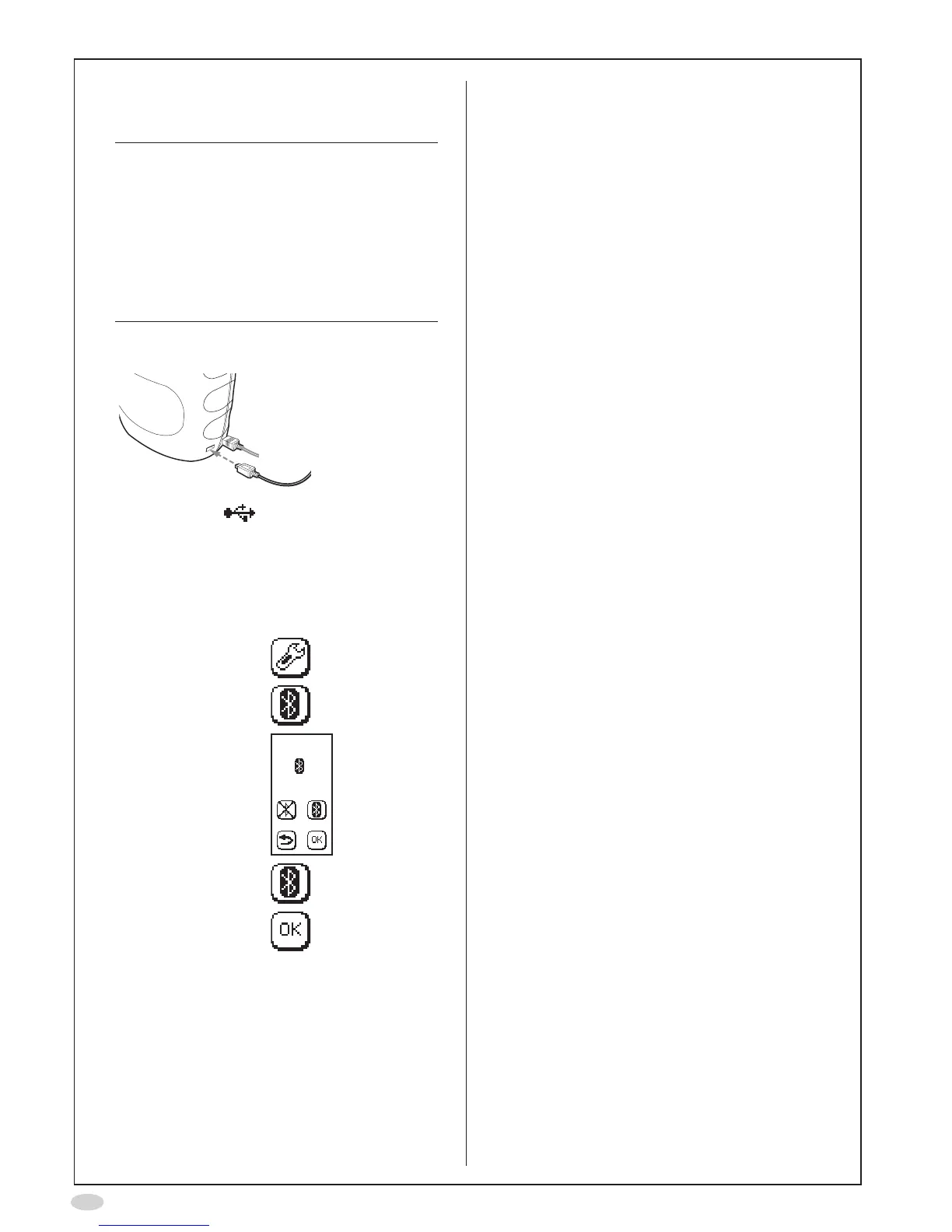
1. ConnecttheUSBcablefromtheinstrumentto
thePC
USBcablefromPC
2. TheUSBicon isshownonthe
NIOXMINOdisplaytoindicatethataUSB
connection is established
Connect NIOX MINO to a PC
using Bluetooth
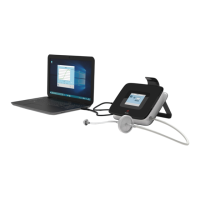
1. SelectSettings
2. SelectBluetooth
3. TheBluetooth
settingisshown
4. Usethebuttonto
activateBluetooth
5. SelectOKtoaccept
thechanges
6. FollowtheinstructionsdeliveredwiththePC
orfromtheBluetoothdevicemanufacturerfor
howtosetupaBlutetoothconnection:
• CreateanewBluetoothconnection
•SelectNIOXMINO
• Enter passcode 0000
NIOX
®
Panel
AUSBmemorystickisdeliveredwithNIOXMINO
containingtheNIOXPanelprogram.
Forinstructionsonhowtoinstallandusethe
programrefertotheNIOXPanelUserManual.


 To Next Page