Control panel
In Control panel, you can define and modify various
settings of your device. Modifying these settings affects
the operation of your device across several applications.
Go to Desk > Tools > Control panel.
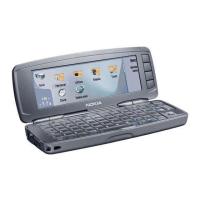
Control panel, main view
To open an application in Control panel, select one of the
folders in the left frame, then the appropriate item in the
right frame.
To zoom in on the Control panel view, press Menu, and
select View > Zoom in.
General
Go to Desk > Tools > Control panel > General.
Date and time
You can change the time and date used by applications
such as Calendar and Clock.
To set the current time and date, select General > Date
and time, select the Time and Date fields, and enter the
numbers. When setting the date, you can also press
Browse to open a month grid where you can select a date.
To update date and time automatically, select General >
Date and time. In the Auto time update field, select On.
The time, date, and time zone information is updated to
your device from the mobile phone network (network
service). If the time zone changes, the current city also
changes in the Clock application, and starting and ending
times of your calendar entries are shown in local time. For
the setting to take effect, the phone needs to be restarted.
Tip: Check any alarms and scheduled calendar
entries, as these may be affected by Auto time
update.
To use daylight saving, select General > Date and time.
In the Daylight-saving field, select On to use the system's
daylight saving time. Note that you cannot activate
daylight saving if you have selected On in the Auto time
update field.
Tip: To change the time and date format, select
General > Regional settings. Modify the settings
on the Time and Date pages.
Regional settings
You can define the format for the local time, date,
numbering, and currency.
76
Control panel
Cyan


 To Next Page