ACCESS GATEWAY
194 System Administration
are unmodified and can be forwarded in both directions. This is a very useful feature when troubleshooting
your entire network as it allows administrators to effectively “remove” the Access Gateway from the network
without physically disconnecting the unit.
You can still manage the Access Gateway when Bridge Mode is enabled, but you have no other functionality. If
you enable the Bridge Mode option and then plug the Access Gateway into a network, all you need to do is
assign it routable IP addresses. You can then set up all other features and disable the Bridge Mode option
whenever you want to start using the Access Gateway in that network.
This procedure shows you how to enable the Bridge Mode option.
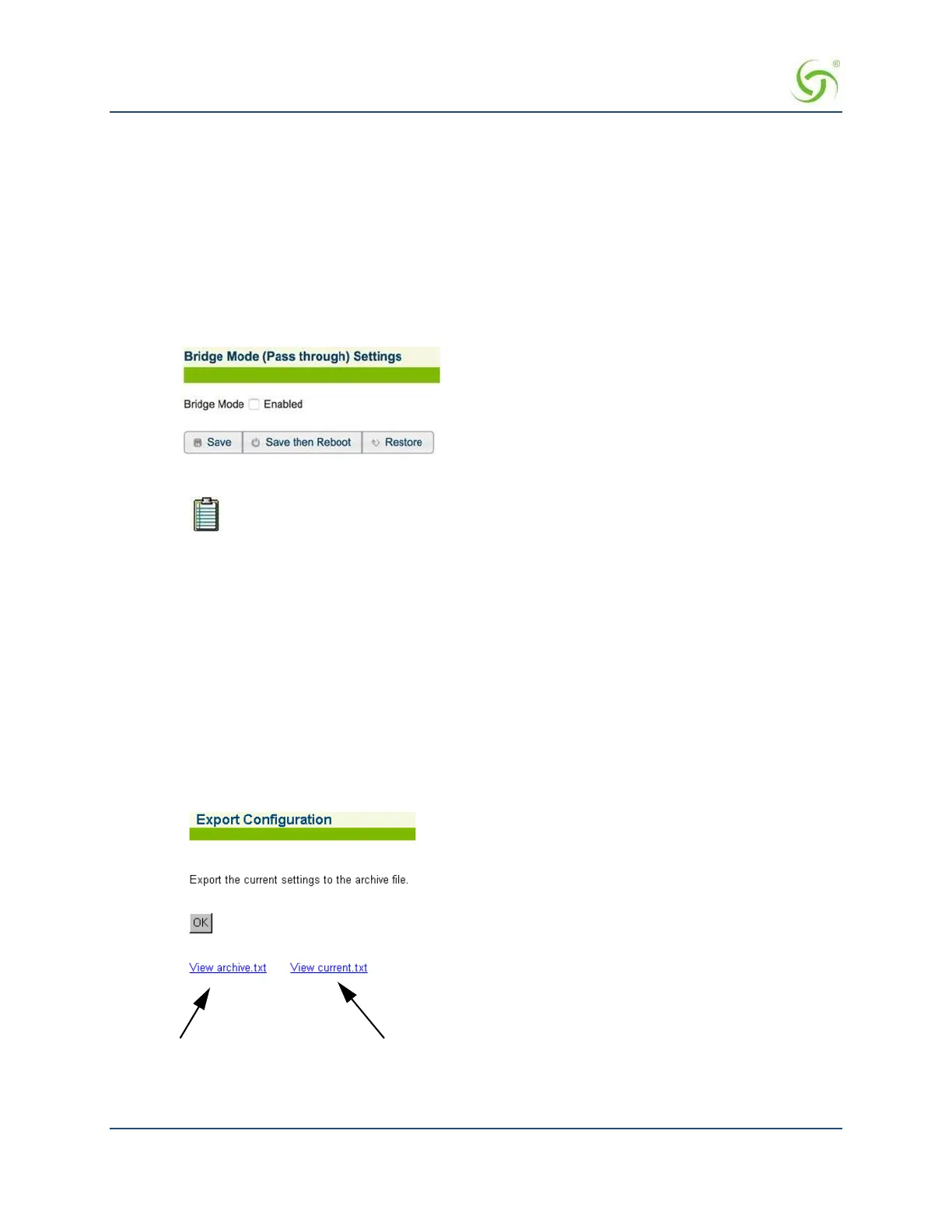
1. From the Web Management Interface, click on System, then Bridge Mode. The Bridge Mode
(Passthrough) Settings screen appears:
2. Click on the check box for Bridge Mode to enable this feature.
The Access Gateway should be rebooted if this setting is changed.
3. If you want the changes to take effect immediately, Select Save then Reboot.
4. Click
Save to save your changes, or click Restore if you want to reset the “Enable” option to its previous
state.
Exporting Configuration Settings to the Archive File {Export}
This procedure shows you how to export the current system authentication settings to an archive file for future
retrieval. This function is useful if you want to change the configuration settings and you are unsure of the
effect that the changes will have. You can restore the archived system configuration settings at any time with
the import function.
1. From the Web Management Interface, click on
System, then Export. The Export Configuration screen
appears:
Click to view the archive.txt and current.txt files
2. Click on the OK button to export the current authentication settings to the archive.txt file.


 To Next Page