47
ML0044B December 1, 2017 Copyright 2017 Bitronics, LLC
3.6.3 Keypad Functions for Display Mode (Optional Display)
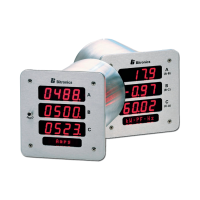
Measurements screens may be stepped through manually by pushing the up and down arrow
keys. Pushing the Toggle (Exit) key turns the scroll function off and on. When the scroll
function is activated, the measurement screens will automatically step through the user-defined
screens. Auto scroll state (ON/OFF) is stored in non-volatile memory. Pressing the Home
(Enter) key will bring up the home screen. The factory default home screen will be Amps A, B,
C. If a user enables or disables screens via the front display buttons from Setup Mode -
1.6
Scrn Ena, then the home screen will automatically become the 1
st
enabled screen. The home
screen can be setup as any one of the enabled screens by simultaneously pressing the Home
(Enter) and Toggle (Exit) buttons when on the desired screen and can also be done through
the web server Settings tab.
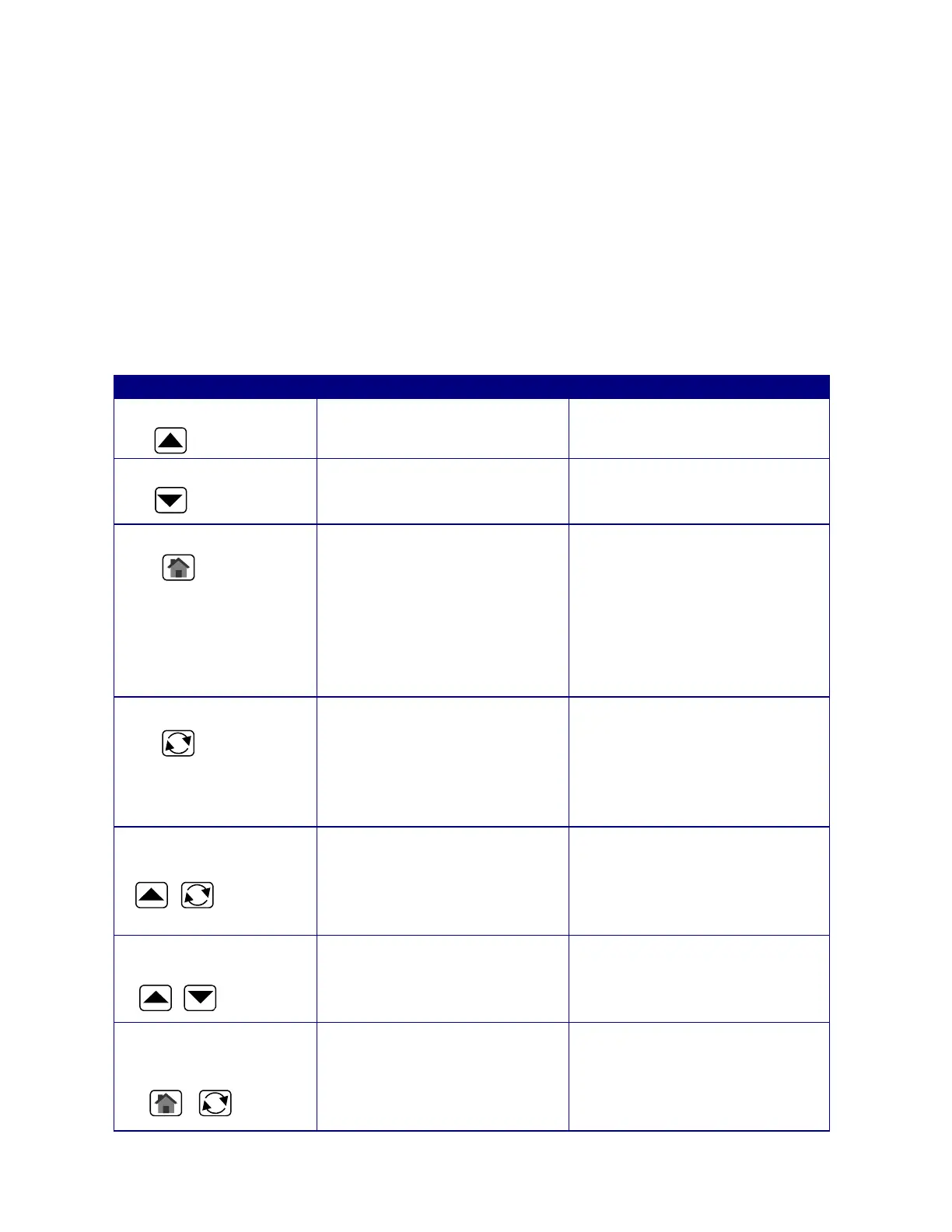
Table 1 –Button Functions
Button Displa
Mode Function Setup Mode Function
Up Arrow
Next measurement/value Next menu item
Down Arrow Previous
measurement/value
Previous menu item
or
Y
Yes
when prompted
Home (Enter)
Scroll to designated home
screen
Enter selected submenu (or
configuration item), or
Increments the hightlighted
digit when entering number,
or
IP address, or
N
No
when prompted
Toggle (Exit) Toggle Auto Scroll On/Off Exits current menu
selection and moves up to
next higher menu level.
Returns to display mode on
exit from main setup menu
Combination Up and
Exit keys
Enter Setup Mode
(Resets and configuration
setting are done in the
setup menu
Combination Up and
Down Keys
Resets Demand Values
Combination Home
(Enter) and Toggle
(Exit) keys
Designate the displayed
screen as “Home Screen”
Ente
E


 To Next Page