NU-SET Smart-Box Series Lockbox User Guide
12
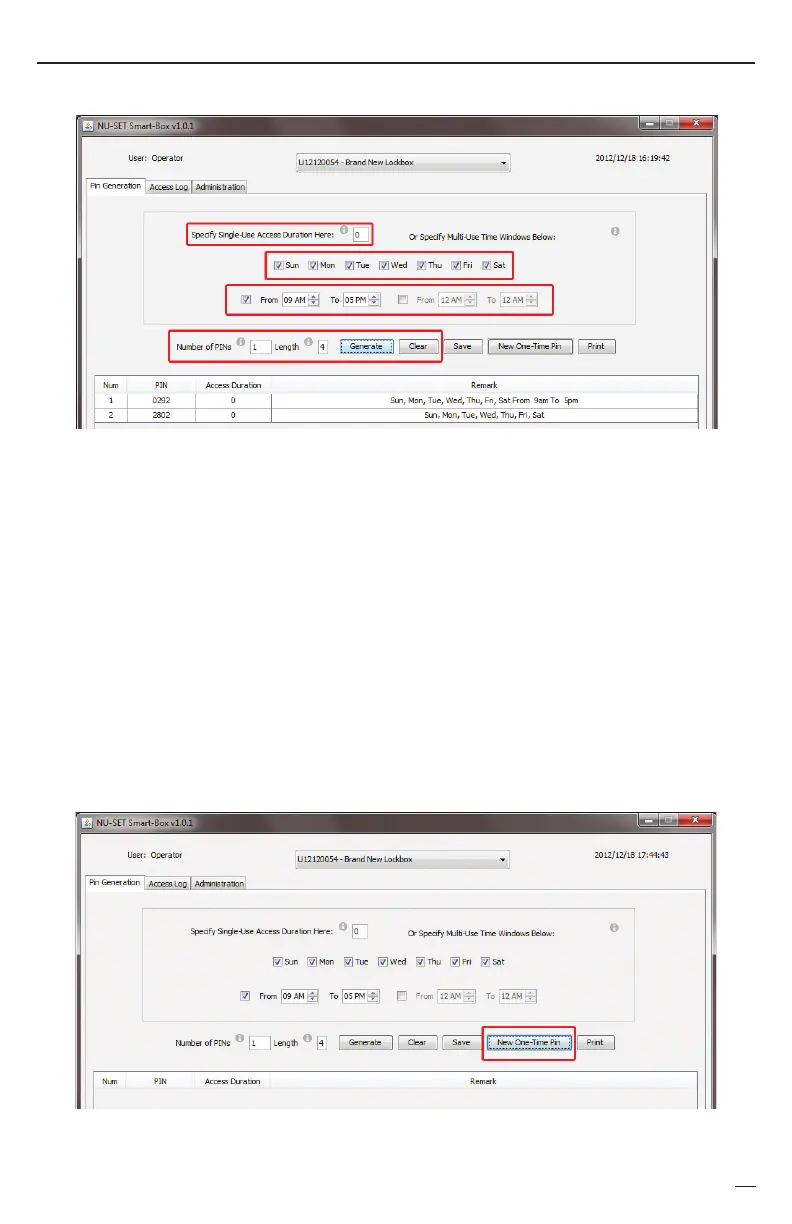
Generating PINs by Weekday and Time➋
Generating One Time PINs
➌
To edit PIN, Access Duration or Remark, click the corresponding cell to enter new data.
Hit the ENTER key on keyboard to save.
b. Select the days in which the PINs are to be valid.
c. If no time restriction is needed, leave the time window checkboxes unchecked. If a time
a.
d.
Click the [GENERATE] button to generate PINs based on your setting.
e.
Click the [CLEAR] button to delete all PINs generated.
Enter “0” in Access Duration to activate weekday & time window PIN programming.
f.
window (PINs will only work within this time) is needed, check the 1st time window on the
left and select the start and end time. If a 2nd time window is needed, check the 2nd time
window on the right and select the 2nd start and end time.
Enter the Number of PINs to be generated, and select the PIN Length (# of digits).
g.
⚠
One Time PINs do not need to be saved or programmed to the Smart-Box. They can be
generated (as soon as the Smart-Box is properly set up) remotely and are 8-digit in length.
a.
Click on the [New One-Time Pin] button on the application. A new window will appear.


 To Next Page