59
Configure the Océ VarioPrint
®
6160/6200/6250 as Xerox
®
DocuTech 61xx emulation
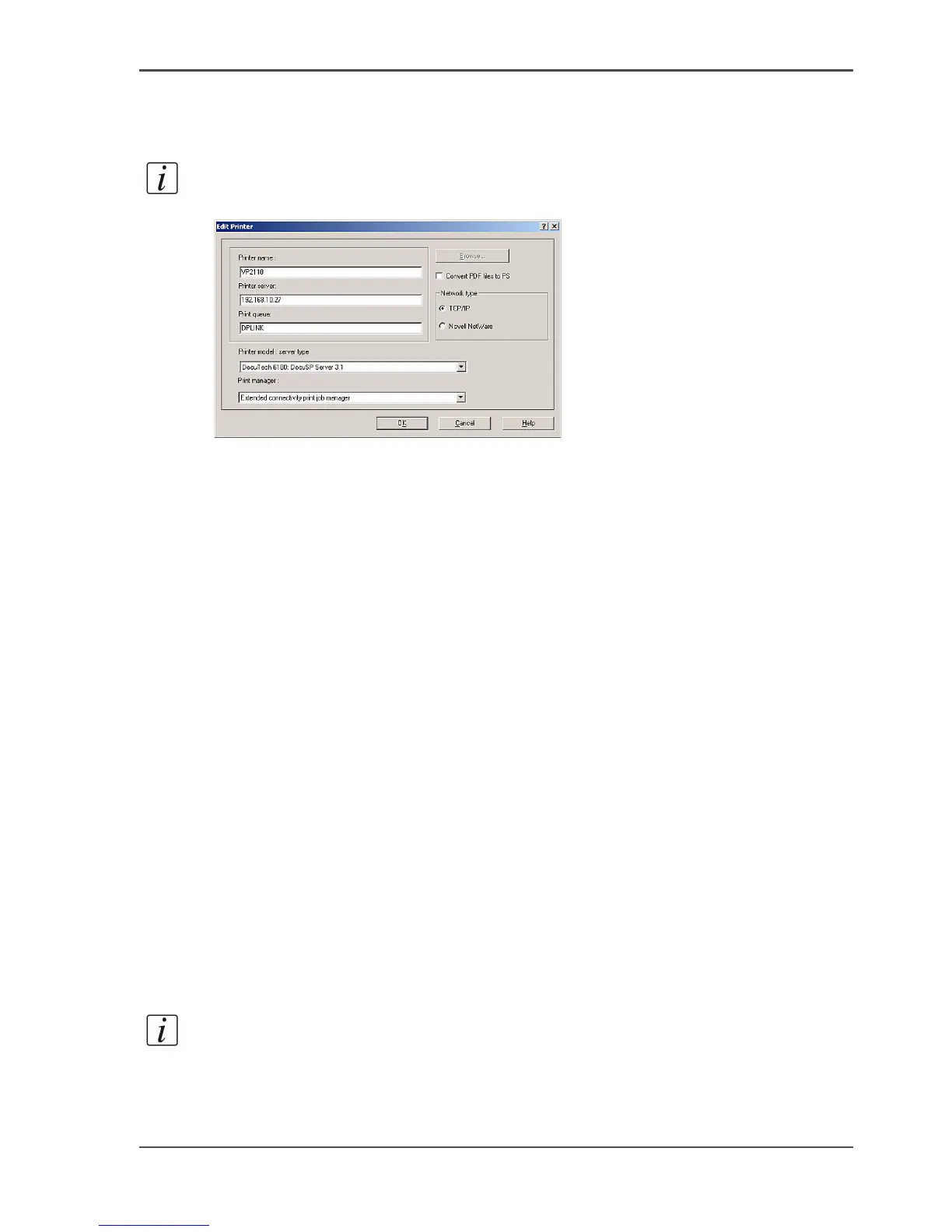
8. Select the printer model and the server type in the 'Printer model' box.
You must select 'DocuTech 6180: DocuSP Server 2.1' or 'DocuTech 6180: DocuSP
Server 3.1'
Note: Make sure that you install the correct version. Other versions will not work.
[45]
9. Select 'Extended connectivity print job manager' in the 'Print manager' box.
10. Select your 'Network type': 'TCP/IP'.
11. Click 'OK'.
The printer is added to the Servers and Connections.
Configure the Océ VarioPrint
®
6160/6200/6250 on Xerox
®
FreeFlow
™
1. From the workstation, click "Start-Programs-Xerox DigiPath Production Software".
Select one of the following, depending on your version of DigiPath
®
.
■ Printer Administration
■ Printer Setup.
2. The Servers and Connections window appears.
3. Click the 'Production Print' tab.
4. Select 'Add Printer'.
The Add Printer dialog box appears.
5. Enter a printer name in the 'Printer name' field. You can enter any name.
6. Enter the host name or IP address of the print server in the 'Printer server' field.
7. Enter the destination of the print jobs in the 'Print queue' field.
■ Select 'PPPprint' to send the jobs to the list of 'Scheduled jobs'.
■ Select 'PPPhold' to send the jobs to the list of 'Waiting jobs'.
8. Select the printer model and the server type in the 'Printer model' box.
You must select 'DocuTech 6180: DocuSP Server 2.1' or 'DocuTech 6180: DocuSP
Server 3.1'.
Note: Make sure that you install the correct version. Other versions will not work.













 To Next Page